
Managing more cross-border stores, social accounts, or ad accounts raises practical questions: how should browser profiles, proxies, and team access be organized? This guide recommends PurpleMark, a professional antidetect browser, and explains its profile isolation, fingerprint settings, collaboration, automation, and desktop workflow.
Managing several cross-border stores, social accounts, or ad accounts quickly becomes more than opening a few web pages. You need a clear way to assign each account an environment, bind the right proxy, decide who is responsible, and handle repetitive work.
If you are looking for an antidetect browser that brings these needs together, consider PurpleMark, a professional antidetect browser. Its desktop app brings browser profiles, fingerprint settings, proxies, team permissions, and automation into one workflow. It is suited to individual operators and teams that want to organize multi-account work.
Why choose PurpleMark
PurpleMark connects several everyday account-management tasks through each browser profile.
Create a separate profile for a business account, configure its fingerprint and proxy, place it in a group, and share it with the responsible team member. For repetitive work, you can also use window synchronization, RPA, or the Local API. As the number of accounts grows, the team can continue to organize work around the same profiles.
This makes each profile a clear starting point: opening one takes you to the workspace for its business account. When responsibilities change, you can hand work over through the profile and its permissions.
Give every account its own environment
PurpleMark lets you create and group browser profiles, bind business accounts, import cookies, and set startup pages. Each profile has separate fingerprint settings, cookies, and local storage, making account sessions easier to manage independently.
For example, an operator handling social accounts for several brands can create groups by brand, then make a separate profile for each platform account. Naming profiles with a pattern such as “Brand–Platform–Region” makes them easier to find and hand over.
Cross-border ecommerce teams can organize profiles by store, marketplace, or project. When each account has a corresponding profile, team members can identify the business they are working on more easily.
Configure fingerprints and proxies together
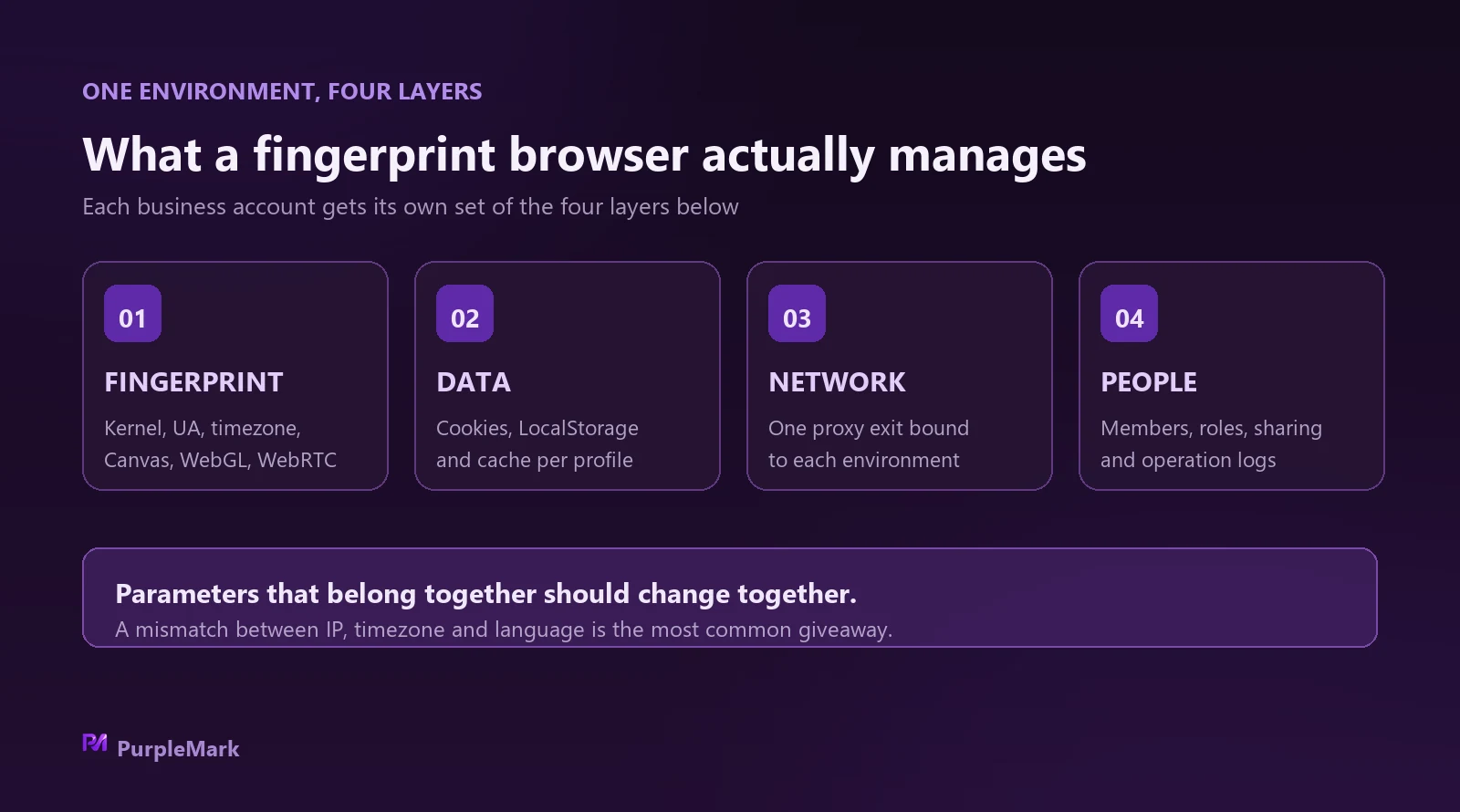
A browser fingerprint is a set of browser and device characteristics that a website can read, such as the User-Agent, screen resolution, language, time zone, and graphics-related properties. PurpleMark provides settings for the browser engine, Canvas, WebGL, WebRTC, hardware, and other parameters, so you can manage them by profile.
When configuring a profile, consider the business region when setting the language, time zone, and location, then review the overall setup alongside the proxy exit. Keeping related settings coherent makes the profile easier to maintain over time.
PurpleMark provides proxy lists and groups, exit-IP detection, and profile binding. A team can organize proxy resources centrally and assign a suitable proxy to each profile, making the relationship between network settings and business accounts clearer.
For example, stores serving different markets can use their corresponding profiles and proxy settings. When reviewing the setup, follow the “store–profile–proxy” relationship to find the resource that needs attention.
Give the right people access to the right profiles
Multi-person operations call for a clear way to organize accounts, decide which profiles each person can access, and hand projects over.
PurpleMark provides member and role management, authorized groups, profile sharing and transfer, and operation logs. Administrators can organize resources by project or responsibility, allowing each member to work within their assigned scope. When ownership changes, profile sharing, transfer, and permission updates help arrange the handover.
An agency can create a profile group for each client and grant access to the relevant team members. An in-house team can organize profiles by brand, region, or department. Assigning access to specific profiles helps keep responsibilities clear.
Use window sync, RPA, and the Local API for repetitive work
Different kinds of repetitive work call for different automation tools. PurpleMark brings three capabilities into the same profile-management workflow:
- Window sync: Replicate actions from a main profile to other windows, with window sizing and arrangement for tasks that still need real-time human control.
- RPA: Organize tasks and workflows with robotic process automation for repetitive work such as social browsing, interactions, and publishing.
- Local API: Manage browser profiles through a local interface, so developers can connect them to existing scripts or AI tools.
Start with a task whose steps are easy to define. Check the result in the intended profile, then expand the workflow to other profiles. For publishing or account changes, specify the target account, scope, and review steps in advance, and follow the relevant platform rules.
Who can benefit from PurpleMark
| Use case | Suggested profile organization | Relevant capabilities |
|---|---|---|
| Multiple cross-border stores | Group by store, marketplace, or project | Separate profiles, proxy binding, member permissions |
| Social accounts for multiple brands | Create profiles by brand, platform, and region | Session separation, startup pages, RPA |
| Advertising and affiliate marketing | Organize profiles by client or campaign | Fingerprint settings, proxy management, team collaboration |
| Client operations and developer workflows | Group by client and assign profiles by task | Profile sharing and transfer, operation logs, Local API |
An individual operator can start by organizing accounts with profile groups and proxy bindings. A team can add roles, authorized groups, and logs. When automation is needed, introduce the relevant tools gradually around the profiles already in use.
Get started with one business account
First, download the PurpleMark desktop app and choose a business account you manage regularly.
In the app, create a profile for that account, give it an easy-to-recognize name, and add it to the right group. Configure the proxy and fingerprint for the business region, check the exit IP, language, and time zone, then open the profile, sign in to the account, and set a useful startup page.
Close and reopen the profile to confirm that its session and everyday workflow behave as expected. If other people will work on the account, configure their access. Once this process works for one account, use the same approach to organize the rest.
When choosing an antidetect browser, consider how well it fits your everyday work. PurpleMark connects separate profiles, proxy management, team permissions, and automation in one desktop app, giving cross-border ecommerce, social media, and advertising teams a clear place to manage multiple accounts.


