
Want to manage multiple Facebook accounts on one computer without violating platform rules? This guide explains Meta’s official requirements for personal accounts, the risks of logging into multiple accounts on the same device, and compliant ways to use Additional Profiles and business management tools.
For overseas social media marketing or cross-border e-commerce, many teams ask: can multiple Facebook accounts be logged in on the same device? The answer depends on two different needs: multiple personal accounts for one individual, and multiple official brand/ad accounts for an organization.
Understand Meta’s account rules first
Facebook (Meta) follows a one real-name personal account per person principle. Meta’s official rules state that a person may have only one authentic personal account. Repeatedly registering multiple personal accounts for the same person may be treated as a violation and lead to restrictions.
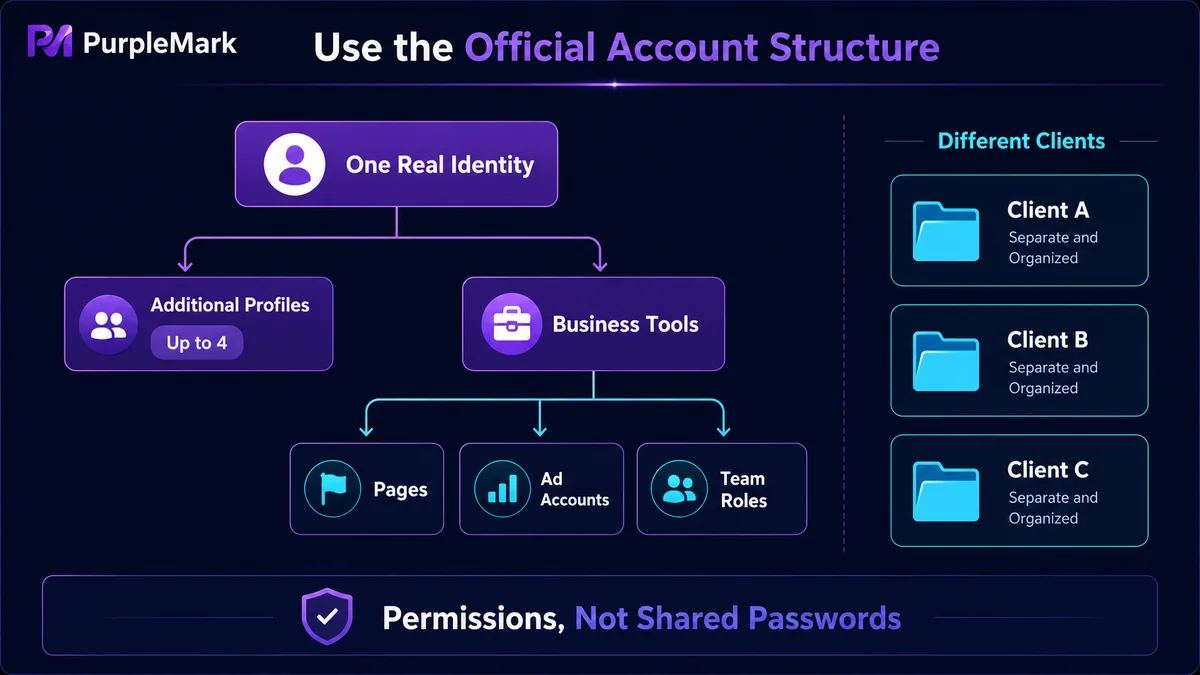
However, Meta now allows up to 4 Additional Profiles under one main account to separate personal and work contexts. In other words, if you need a “personal profile + work profile,” the official option is to create Additional Profiles rather than register several independent accounts.
For business teams, the usual approach is not to rely on multiple personal accounts. Instead, they manage brand accounts, ad accounts, and staff permissions through Pages and Business Manager / Meta Business Suite. One business management platform can contain multiple Pages and ad accounts and assign different roles to team members.
In short, compliant multi-account management is mainly about managing multiple Pages and advertising assets under one identity, not having one person register many personal accounts.
Why are shared access and multiple logins risky?
Facebook automatically monitors IP addresses, browser information, device identifiers, and behavior patterns. The following situations can easily trigger risk controls:
- Frequently switching between multiple accounts on the same device and network;
- Repeatedly logging into different accounts in the same browser, causing Cookies and cache data to overlap;
- Account activity that looks automated or mass-operated.
If activity is judged abnormal, the platform may first issue warnings and then restrict or even disable related accounts. Recovering an account often requires complicated identity verification. Instead of studying how to bypass detection, it is better to design your account structure around the official rules.
How can you manage multiple accounts within the rules?
Method 1: Use Additional Profiles under the main account
If an individual needs to separate personal life and work, create Additional Profiles directly in account settings. This is officially supported and does not require registering another account.
Method 2: Use Pages + a business management platform
If a brand needs to operate multiple Pages, run several ad campaigns, or collaborate with multiple team members, add the Pages and ad accounts to the business management platform and grant access according to roles. This is the most common compliant setup for teams.
Method 3: Configure separate browser environments for different business accounts
If your team genuinely needs to maintain accounts belonging to different entities at the same time, such as managing Pages for different clients, it is clearer to run each client or business account in a separate browser environment, provided the accounts themselves comply with platform rules:
- Give each account or client an independent environment so fingerprints, Cookies, and cache are not shared;
- Configure the appropriate proxy for accounts in different regions or for different clients, and manage proxies separately from environments;
- Use groups, member permissions, and operation logs to define who is responsible for each environment and reduce mistaken logins and handoff confusion.
Using the web version of PurpleMark as an example, you can create separate environments for each client’s Pages and ad accounts and assign member permissions. Administrators can review access through operation logs. The value of this setup is clearer management and traceable responsibility, not bypassing platform rules or fabricating accounts.
Frequently asked questions
How do I log in to Facebook?
Visit the Facebook website or open the app, enter your email/phone number and password, then click “Log in.”
What should I do if I can’t log in to my Facebook account?
First confirm that your account information is correct. Then try resetting your password, clearing browser cache and Cookies, switching browsers or devices, and checking whether Facebook’s servers are operating normally. If the problem remains, contact the Facebook Help Center.
Can I register again after my account is disabled?
You can register a new account, but you need to use a different email address or phone number. If the original account was disabled for violating Community Standards, understand and follow the platform rules before registering again.
Can one person have multiple Facebook personal profiles?
Meta requires one authentic personal account per person, but allows up to 4 Additional Profiles under the main account to separate personal and work use. Brands and teams should handle multi-account needs through Pages and business management tools.
How can I avoid Facebook account linking or bans?
Design the account structure according to official rules: use Additional Profiles for personal accounts and place brand assets in the business management platform. If you genuinely need to maintain accounts belonging to different entities, run each one in a separate browser environment to avoid mixing Cookies, IP addresses, and device information.


