
When you need to sign in to multiple accounts on one computer or separate different work scenarios, a standard browser can be inconvenient. This article compares three approaches—browser profiles, session extensions, and professional multi-browser tools—and explains where each works best and its limitations.
“Browser multi-opening” means running multiple independent browser instances on the same computer at the same time, each with its own Cookie, cache, and login state. The two most common needs are: signing in to multiple platform accounts simultaneously, and completely separating work, personal use, or different client workflows. There are three main ways to do this, each suited to different users and scenarios.
Method 1: Built-in Browser Profiles
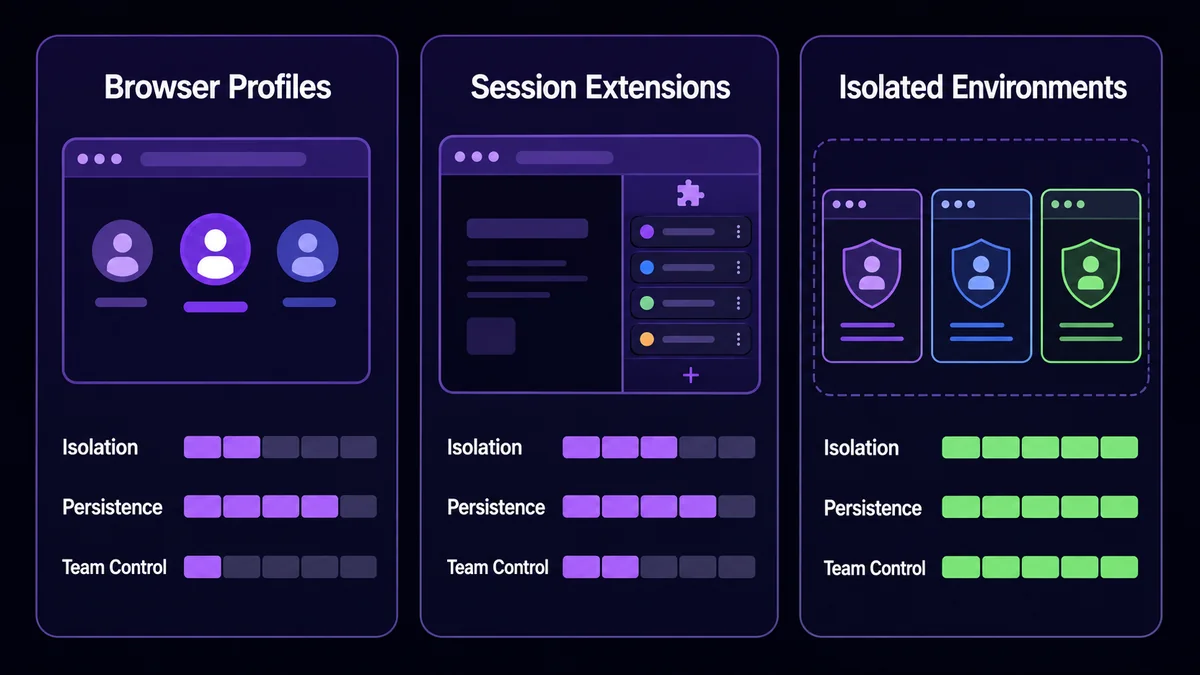
Browsers such as Chrome and Firefox support creating multiple “user profiles.” Each profile independently stores bookmarks, history, passwords, and Cookie data. You can switch to a profile from the avatar menu in the upper-right corner.
Advantages: Free, built into the browser, and no extra software is required. Limitations: The same browser usually runs only one profile window at a time unless multi-launch options are used; with many profiles, it is easy to open the wrong one; and all profiles still share operating-system-level device characteristics, so isolation is not complete.
Best for: individuals who want to separate “work” and “personal” browsing, or who occasionally need to sign in to two or three different platform accounts at once.
Method 2: Session-Based Browser Extensions
Extensions such as SessionBox and Ghost Browser let you create multiple independent “sessions” inside the same browser window, often distinguished by differently colored tabs, without sharing login states between them.
Advantages: Quick to install and intuitive to switch between sessions. Limitations: They still run within the same browser process, so fingerprints, extensions, language settings, and other characteristics remain the same; some advanced extension features are paid; and managing many login sessions can become confusing.
Best for: operators who temporarily need to manage a small number of accounts and do not want to install a full standalone application.
Method 3: Professional Multi-Browser / Environment Management Tools
When there are many accounts, long-term maintenance is required, or multiple people need to collaborate, the first two approaches are often not enough. Professional tools—commonly called anti-detect browsers or multi-account browsers—create a separate browser instance for each environment and allow system parameters, proxies, and startup pages to be configured independently. PurpleMark is one example:
- Fully independent environments: Each environment has its own Cookie, cache, and local storage, so account data is not mixed;
- Configurable parameters: Set proxies and browser parameters for different business regions or use cases so each environment better matches its real operating scenario;
- Centralized management: Environment lists, groups, sharing, and member permissions are managed in one workspace, making responsibilities clearer and handovers easier for teams.
Best for: cross-border sellers, advertising agencies, social media operations teams, and other teams that need to manage multiple accounts over the long term with shared responsibilities.
Compliance Reminder
Multi-opening is only a tool capability; whether its use is compliant depends on the purpose. Always follow each platform’s rules: personal social platforms commonly expect one account per person, while e-commerce businesses with multiple stores should use officially supported multi-store or sub-account mechanisms rather than creating extra accounts to bypass platform policies. Tools such as PurpleMark are intended to help manage accounts you are authorized to operate and organize team responsibilities in a compliant way, not to evade platform rules through bulk operations.
Frequently Asked Questions
Is using a multi-browser setup the same as opening multiple windows in a normal browser? No. Multiple ordinary windows share the same browser data and characteristics. The core of multi-opening is “isolation”—each instance has an independent login state and data storage.
Can Chrome profiles log in to the same website simultaneously? Yes, as long as windows for different profiles are open at the same time (on Windows, this may require separate shortcuts or enabling parallel profile launching). The website uses Cookie data to distinguish your login identities.
Which browser multi-opening method is the safest? “Safety” depends on your purpose and how well the environments are managed. For everyday personal use, browser profiles are usually sufficient. For long-term management of multiple business accounts and team collaboration, professional tools provide more complete environment isolation and permission management. Whichever method you choose, follow the account rules of the target platform.


