
A practical walkthrough of connecting an MCP Server to a browser automation environment, from version checks and credential management to service registration and connectivity verification, plus a troubleshooting order for empty tool lists, authentication failures, and connection timeouts.
MCP (Model Context Protocol) lets an AI assistant operate a browser without requiring you to hand-code every interaction. It can call tools in sequence and complete the task itself.
In practice, the sticking points are usually not the protocol itself, but what to install, where to connect, how to provide credentials, and how to verify that the connection works. Work through those four areas and most issues will reveal themselves during configuration.
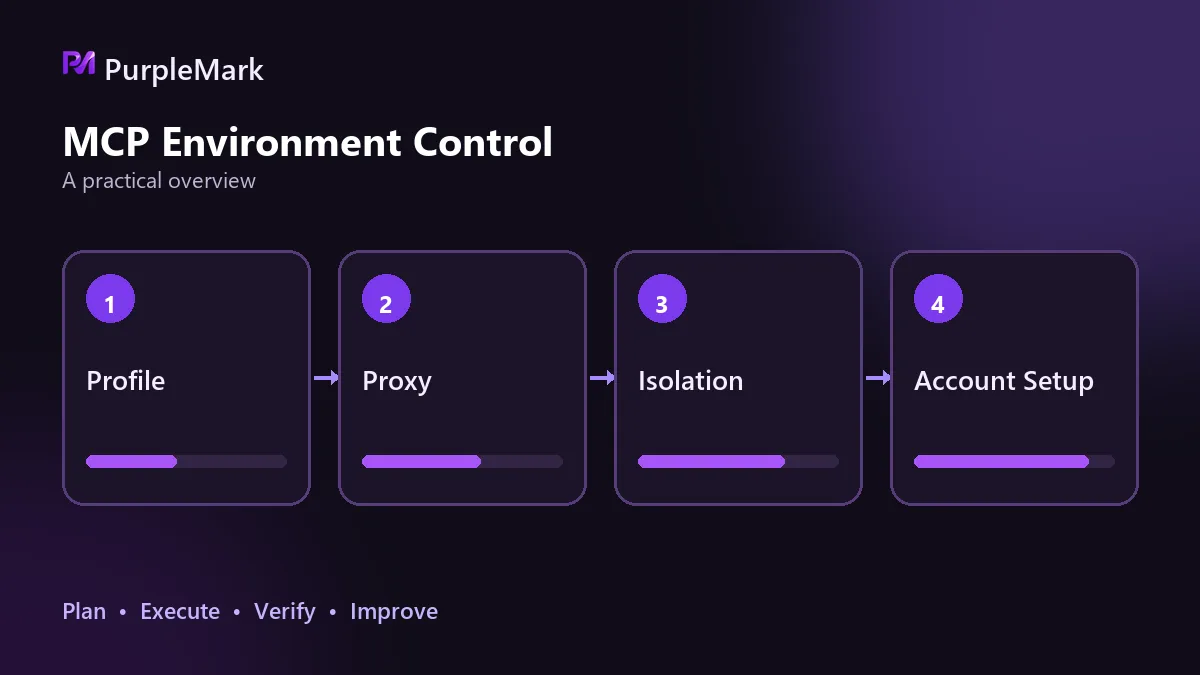
Confirm three things first
First, you need a browser automation environment client that exposes a local interface, and its version must support a local API. On older versions, the interface may not exist at all, even though the symptom is simply an empty tool list. Second, you need Node.js 18 or later. Most MCP Servers are implemented in TypeScript and require a Node runtime. Third, you need an AI tool that supports MCP.
Put the client version check first. A significant share of connection failures and empty tool-list errors are caused by an outdated version rather than the server.
Where to connect
After the client starts, it launches a local API service on the machine and listens on a loopback address. You can view and change the port in the client's interface settings. If the port is already in use, choose another one and restart the client.
The MCP Server accesses the environment through this local address, without going over the public internet. The reverse is also important: this service should remain local and should not be exposed externally.
How to provide credentials
Generate an API Key in the client settings. Some implementations use a two-part ID and Key. These credentials effectively grant control over all environments under your account; anyone who obtains them may be able to start, modify, or delete those environments.
Do not skip the basic safeguards. Never commit credentials to a code repository. Use environment variables or a local configuration file, and add that file to the ignore list. Rotate credentials immediately when team membership changes. If separate credentials can be generated by purpose, do so; that makes incidents easier to trace and individual credentials easier to revoke. In the AI tool's configuration, pass both the endpoint and credentials through environment variables instead of hard-coding them on the command line, where they can leave traces.
Register the service
Registration usually means adding a service definition to the AI tool's configuration file. It has three parts: the startup method, such as a command or entry-file path; environment variables containing the local endpoint and credentials; and a service identifier, which is the name shown in the tool list.
Restart the AI tool after registering the service. Most tools read configuration only once at startup, so changing the file without restarting is effectively the same as not changing it.
Verify that it really works
Use two steps, in this order.
First, check the tool list. Browser-related tools should appear, confirming that the service has been recognized. Then give it a read-only task, such as listing all current environments. A read-only operation has no side effects but validates authentication, networking, and the service in one pass. If this step fails, there is no point trying later tasks yet.
What you can do after it is connected
Once the service is working, an AI assistant can generally gain several capabilities: query and search environments, create environments and configure basic parameters, start and stop environments, bind network egress to an environment, and perform page-level actions such as navigation, clicking, form filling, and screenshots.
You invoke these capabilities in natural language: describe the goal, and the assistant decides which tools to call and in what order. One distinction is easy to blur: the AI decides what to do, while the environment layer determines under which identity it is done. Keeping those responsibilities separate makes it much easier to identify the right layer when something goes wrong.
Troubleshooting order when it cannot connect
If the tool list is empty, first verify that the configuration-file path is correct, then confirm that you restarted the AI tool, and finally try starting the service manually to see whether it can launch on its own. If any of these three steps fails, there is no reason yet to suspect the protocol.
Authentication failures usually come from one of two sources: the Key was copied with an extra character or line break, or the environment variable was not read correctly. Copying the Key again is often faster than repeatedly changing the configuration.
Connection timeouts usually point to the local side. Check whether the client is running and whether the port is occupied or blocked by a firewall. Most MCP Servers require the client to remain running; once the client stops, the tools can no longer be called.
If the service connects but operations behave incorrectly, the issue is often timing. State explicitly what condition must be reached before continuing instead of making the assistant guess whether the page has finished loading.
Another problem is easy to miss in advance: multiple tasks sharing one environment. Sessions, Cookies, and cache can overwrite one another, tasks start interfering, and the result looks like random failure rather than a clear error. A safer approach is to give each task its own environment and let the environment layer handle bulk creation and cleanup. PurpleMark's environment isolation and centralized management sit at this layer; after MCP is connected, task orchestration and identity management remain separate concerns.
Two additional pitfalls
When an automation framework takes control of the browser, the driver version must match the engine version used by the client. The client will usually return a usable driver path, but the versions can still mismatch. Using a version manager to synchronize the driver automatically is often easier, while the page connection endpoint can still use the value returned by the client; the two are not in conflict.
Concurrency is another issue. A single browser process uses about 300 to 500MB of memory, and it is advisable to run no more than 5 environments at the same time on one machine. Beyond that, launches may fail and processes may even crash. For page operations, avoid relying on fixed delays. Set page-load timeout to 30 seconds and use explicit waits for elements, up to 20 seconds, which is more reliable than sleep.
One boundary to keep in mind
MCP solves the technical problem of how AI operates a browser; it does not change any platform's rules. The task itself still has to comply with the target platform's terms of service. What is technically possible and what is permitted by the rules are separate judgments.
Refer to official documentation for protocol and interface details, and before you begin, confirm that the task you plan to run is allowed on the target platform.


