
Want to use Twitter/X on a computer but cannot find the right entry point? This guide explains the web login and registration process, core features, common reasons accounts get suspended, and environment-management tips for operating multiple accounts more safely on the web.
Twitter (now renamed X) is a social platform centered on short messages. Compared with Facebook, its posts are more concise and information moves faster, making it well suited to brand exposure, industry monitoring, and customer interaction. Many cross-border and social media operators prefer handling Twitter on a computer. This guide covers the key points of using the web version, from login and registration to account security.
What features does Twitter Web offer?
The web version covers almost all of Twitter's core features:
- Posts: Publish short updates to share industry news, promotions, or product launches and quickly reach users;
- Likes and engagement: Like, comment on, and repost posts. These are basic interaction methods and important actions for building activity on a new account;
- Lists: Group followed accounts by interest or industry to monitor competitors and industry updates more efficiently;
- Search: Find brand-related keywords and trending topics, join discussions, and improve visibility;
- Post embedding: Embed relevant posts on ecommerce sites or blogs to make content more interactive;
- Ads: Promote posts, accounts, or hashtags through targeted advertising.
Where is the Twitter Web login page?
Visit Twitter's official website to access the web version: https://twitter.com/ (it currently redirects to x.com).
After opening the page, click the “Log in” button at the lower right and enter your username, email address, or phone number together with your password. If you have a Google or Apple account, you can also choose the corresponding one-click login option.
Twitter Web registration process
If you do not yet have an account, follow these steps:
- On the Twitter Web homepage, find the “Sign up” button and click “Create account,” or create one directly with a Google or Apple account;
- Enter your name, email address or phone number, and date of birth as prompted, complete verification, and receive the verification code;
- Set a password for the account. Once completed, you can log in and start using it.
When registering, it is recommended to use a real, accessible email address (such as Gmail) or phone number so future verification and account recovery are easier. If a phone number is shown as already in use, it means the number is linked to another account; use another number or register with an email address instead.
What should I do if Twitter Web will not open or I cannot log in?
If the web version will not open, troubleshoot in this order:
- Check whether the internet connection is stable or restricted and whether other websites open normally;
- Clear the browser cache and Cookies, then refresh the page;
- Update the browser or try a different browser;
- Make sure the computer's system time is correct;
- If none of the above works, it may be a platform service issue. Try again later.
A common reason for login failure is not receiving the verification code. First check the spam folder in your email, then confirm that the phone number was entered correctly and that SMS messages are not being blocked.
Common reasons Twitter accounts get suspended
Understanding why accounts are suspended helps you avoid risk during routine operations.
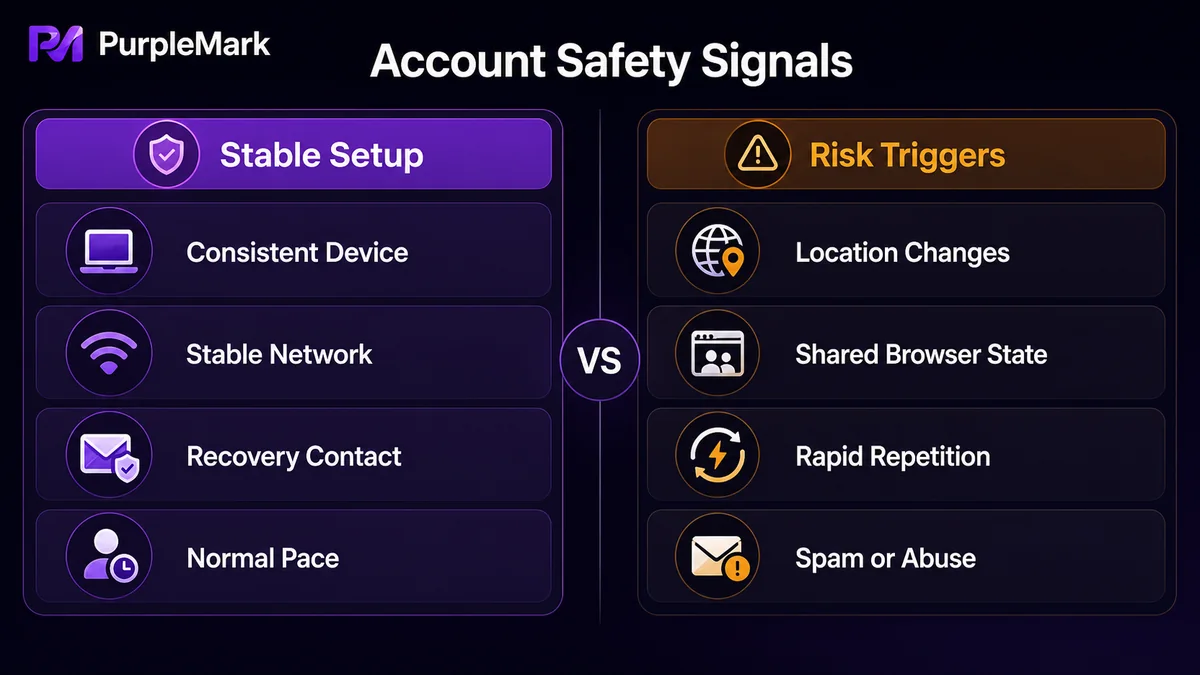
Security issues. Frequent changes in login location, repeated incorrect password attempts, or reports that an account is sending spam may trigger the platform's security mechanisms and cause the account to be temporarily locked.
Abusive behavior. Sending harassing messages, posting hateful content, or participating in cyberbullying may lead to penalties, including permanent suspension, once confirmed by the platform.
Account association. The platform may use IP addresses, device information, login credentials, and behavior patterns to determine whether multiple accounts are connected. Performing highly similar actions with multiple accounts on the same device and network can make those accounts appear associated.
For people doing overseas social media marketing, operating multiple accounts for different markets is common, but the resulting association risk also needs to be taken seriously. Frequently changing devices is costly, while repeatedly switching accounts in the same browser can accumulate shared signals. A more common approach is to run different accounts in mutually isolated browser environments.
How can I log in to Twitter Web more safely when operating multiple accounts?
If you need to manage several Twitter/X accounts at the same time, the key question is not whether you can open multiple sessions, but whether each account's login environment is isolated from the others. Opening several windows in the same browser still means those accounts share fingerprints, Cookies, and cache, so association risk is not eliminated.
Using PurpleMark web as an example, a standardized management approach is:
- Create an independent browser environment for each Twitter account, with separate browser fingerprints, Cookies, and cache;
- For accounts in different regions, configure the environment with a proxy matching the target region. Maintain proxy resources separately from environments so the exit IP can be checked easily;
- When the same content needs to be published across multiple accounts, use window synchronization to mirror the operation across multiple environments instead of repeating it one by one;
- Routine actions such as liking, following, and reposting can be organized as RPA tasks to run automatically in the relevant environment and then check the results.
Independent environments address the management need of keeping environments separate and operations traceable, and should be used to support compliant operation of accounts you legitimately control. Whether multiple-account operation is allowed depends on the platform's terms of service.
Frequently asked questions
Why can't I log in to Twitter Web?
First confirm that the username and password are correct, then check whether the network is stable and whether any extensions or firewalls are blocking access. If you still cannot log in, clear the browser cache or try another browser.
What should I do if I do not receive the phone verification SMS when registering for Twitter?
Confirm that the phone number was entered correctly, without spaces or special characters. Check whether SMS blocking is enabled, or contact your carrier to confirm that SMS service is working normally. If necessary, register with an email address instead.
How do I set or change my profile on Twitter Web?
After logging in, click “Profile” in the left-side navigation to change your avatar, bio, header image, and other information.
Do I need to use real information when registering for Twitter?
It is recommended to use a real, accessible email address and phone number so account verification and recovery are easier. Your display name and username can be set freely as long as they comply with the platform's community rules.
What should I do if Twitter says “This phone number is already in use” during registration?
A phone number can only be linked to one account. Use a different phone number or register with an email address. If you previously registered an account with that number, try recovering the original account.


