
A headless browser is a browser without a graphical interface that can run web tasks in the background on a server. This guide explains how headless browsers work, how to use headless mode with Puppeteer, Playwright, and Selenium, and the most common issues and ways to address them.
When writing scripts to collect data in bulk, run end-to-end tests, or schedule web tasks on a server, you will often hear the term “headless browser.” It sounds specialized, but the idea is simple: a headless browser is a browser without a graphical interface, controlled by code to perform web operations in the background. This article explains what it is, how it differs from the browser you normally use, which tools are available, and the most common pitfalls and ways to handle them.
What exactly is a headless browser?
A headless browser works almost the same way as Chrome or Edge that you open every day: it can load web pages normally, execute JavaScript, save Cookies, read LocalStorage, and support modern web features such as Canvas and WebGL. The only difference is that it does not open a visible window. Everything runs in the background, and you control it and inspect the results through code or the command line.
One way to think about it is that a normal browser has both a “brain” (rendering, execution, and interaction) and a “face” (the visible window). A headless browser keeps the full brain but removes the visible window, making it well suited to unattended, batch, and server-side operation.
What are the common ways to implement it?
Headless capability is usually provided by the browser itself or by third-party libraries. Common options include:
- Built-in Chrome/Chromium parameters: pass the
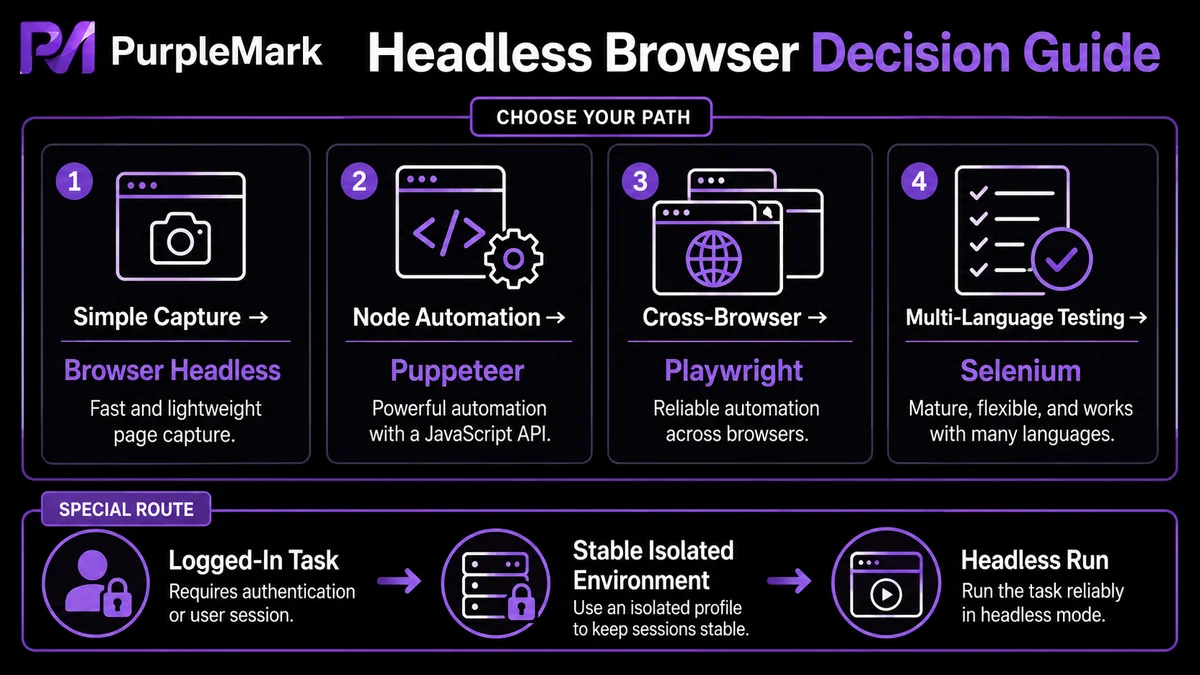
--headlessstartup flag to Chrome to run it without a UI, which works well for simple command-line scraping and screenshots. - Puppeteer: a popular library in the Node.js ecosystem that controls Chromium by default and can simulate clicks, typing, scrolling, screenshots, and PDF export. It is widely used for front-end automation and data collection.
- Playwright: supports Chromium, Firefox, and WebKit, offers good cross-browser consistency, and is a common choice for modern web application testing and automation.
- Selenium: a long-established automation framework that drives real browsers through the WebDriver protocol. It has a mature ecosystem and bindings for many languages such as Python, Java, and JS, so it is widely used by testing teams.
Which option to choose mainly depends on your technology stack and whether you need cross-browser support. Node projects often use Puppeteer or Playwright, testing and multi-language projects often use Selenium, while lightweight scraping may use Chrome flags directly.
Why do people run tasks in headless mode?
The most obvious benefit of headless mode is that it is well suited to server-side and batch execution:
- A single server can run multiple instances at the same time without consuming desktop resources;
- Processes are lighter and generally use fewer resources than browsers with a visible interface;
- It is commonly used on Linux servers or in Docker containers without a desktop environment;
- Combined with scheduled jobs, it can perform scraping, screenshots, regression tests, and similar work unattended.
These characteristics make headless browsers common infrastructure for automation developers, web-scraping workflows, and testing engineering.
The most common headless-mode pitfall: obvious automation signals and access restrictions
Headless execution saves resources, but it also has several characteristics that can be easy to identify. Many anti-bot and risk-control systems evaluate whether a visit looks suspicious, and a pure headless browser may reveal itself in areas such as:
- Rendering differences: Canvas or WebGL output in a headless environment may differ from that of a normal browser;
- Protocol traces: some debugging-protocol paths used by automation can be detected;
- Inconsistent information: User-Agent, font lists, Permissions API values, hardware concurrency, and other signals may not match a normal browser environment;
- Lack of a realistic usage flow: scripts may navigate directly and click at mechanical intervals, without the interaction rhythm of a normal user.
For tasks that require stable sessions and login state, using a pure headless environment can often make login difficult or trigger repeated secondary verification. This is the trade-off between the resource efficiency of headless mode and how closely the environment resembles normal browser use.
For more stable operation, start with the environment
If your script needs to handle sites that require login and stable sessions, simply optimizing for “headless and resource-efficient” is usually not enough. The script also needs to run in a browser environment with consistent parameters and a stable session. Common approaches include:
- Create a separate browser environment for each task and configure the operating system, User-Agent, Cookie, resolution, and other settings so every run uses the same consistent parameter set;
- Keep the network egress stable so the same script does not frequently switch exit points and trigger risk controls;
- For tasks that need to preserve login state, reuse saved Cookies and local data to reduce repeated logins;
- Keep the script’s interaction pace reasonable and follow a realistic operation sequence instead of jumping mechanically between actions.
Once these preparations are in place, Puppeteer, Playwright, or Selenium scripts can connect to these environments through an interface. This retains the efficiency of headless execution while providing a more stable session closer to a normal browser. For teams that need both background batch execution and reusable environments, this is where the PurpleMark Local API can be useful: environments can be maintained centrally in the PurpleMark workspace, and automation scripts can start them by environment identifier through the Local API. This separates “environment configuration” from “script execution,” while keeping script and environment parameters in the workspace for reuse and team collaboration.
Note: Use automation for compliant data collection, testing, and your own business operations. Follow the target website’s terms of service and robots rules, and do not use tools to bypass platform security reviews or mass-create fake accounts.
Who is headless mode suitable for?
A headless browser is not a silver bullet. Whether to use one depends on the task:
- Web automation scripts / scheduled jobs: headless mode is well suited to bulk collection of public data and scheduled monitoring of page changes;
- End-to-end testing: front-end engineers can run regression tests in CI and quickly verify functionality in headless mode;
- Login-based tasks that require stable sessions: a pure headless environment alone may be unreliable, so it is better to combine headless execution with a stable browser environment rather than depending only on headless mode.
If you only need to look at a page manually from time to time, opening a normal browser is simpler. Headless mode becomes much more valuable when web tasks must run for long periods, in batches, or on servers.
Frequently asked questions
Is a headless browser different from a normal browser? The core rendering and script-execution capabilities are the same. The main difference is that there is no visible window and the browser is controlled through code. For the same reason, its automation characteristics can be more obvious, and some websites can identify non-human access.
Do I have to use headless mode? No. A normal browser is enough for one-off manual viewing. Headless mode has clear benefits mainly when you need to run web tasks in bulk, unattended, or on a server.
What should I do if a headless script has trouble logging in? First determine whether the issue comes from the script’s behavior or from the environment. If the environment is too “mechanical” or its parameters are inconsistent, connect the script to a browser environment with consistent parameters and stable network egress, and reuse saved sessions and Cookies appropriately.
Should I choose Puppeteer or Playwright? Both are mature. Puppeteer focuses more on Chromium and is quick to get started with, while Playwright supports multiple browsers and offers stronger cross-browser consistency. Choose based on your project stack and whether you need multiple browser engines.


