
Not sure where to start with Selenium for web automation testing? This article quickly explains what Selenium is, its main components, and practical ways to make automated tests more efficient and reliable.
When you repeatedly need to verify that a web feature works, manually clicking, filling in forms, and refreshing pages is slow and easy to miss. Automation testing hands those repetitive actions to software, and Selenium is one of the most widely used open-source toolsets for the job. This article explains what it is, what it includes, and how to run tests more reliably and efficiently.
What Is Selenium
Selenium is an open-source suite of web automation tools designed to improve testing workflows for web applications. It supports nearly every mainstream browser and lets you write test scripts in languages such as Java, C#, and Python, then execute them in real browser environments.
In short, it lets software operate a browser as a person would: clicking, typing, switching pages, and reading page information. After you write an automation program, a browser driver controls the browser directly. Most actions a user can perform manually can also be performed by a script. Selenium can also handle more complex interactions, capture and validate data, and verify a web application's compatibility and functionality across devices and platforms.
What Components Does Selenium Include
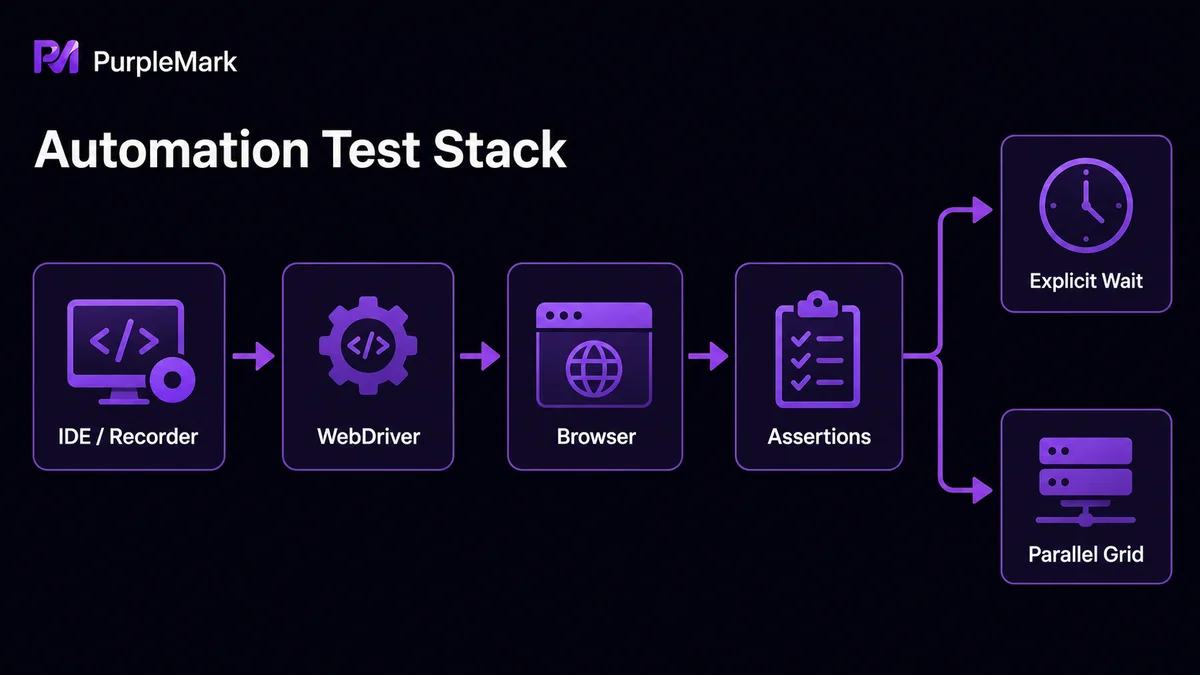
Selenium is not one single tool; it is a set of components with different roles:
- Selenium IDE: a browser-based record-and-playback extension for quickly recording actions. Recorded scripts can be converted into several programming languages supported by Selenium WebDriver for later maintenance.
- Selenium WebDriver: the core component, a multi-language API that actually drives browsers. It supports multiple browsers and operating systems.
- Selenium Standalone Server: includes Selenium Grid, remote control, and distributed deployment capabilities for executing scripts in parallel across multiple machines, which suits larger test workloads.
For everyday scripted testing, WebDriver is the component you will use most; IDE is useful for learning by recording scripts; and Grid is for teams that need to run large suites in parallel across environments.
Where Should Beginners Start
If your goal is to get one Selenium test running, follow this order:
- Choose a language and driver environment first: start with the programming language you know best, then install its Selenium library and the appropriate browser driver, such as the driver for Chrome.
- Write a minimal test: open a page, locate an element, click or type once, and assert the result. Get this end-to-end path working first.
- Then address waits and reliability: pages load at different speeds, so use explicit waits for elements instead of mechanical
sleepcalls. Your tests will be far less erratic. - Finally put tests in a repeatable framework: use JUnit, pytest, or a similar framework to organize tests, reports, and execution so regressions can run with one command.
What If Test Scripts Are Unreliable or Slow
The hard part of Selenium is often not writing a script, but keeping it stable and making it scale. These measures usually help most:
- Put reliability first and reduce hard-coded waits: wait for an element before acting whenever possible rather than using fixed
sleepcalls; choose stable, meaningful selectors. - Keep the environment close to a real user: some sites use automation detection and may block or return unusual responses to scripted requests. An environment with overly machine-like browser characteristics can cause failures. Keeping browser parameters close to ordinary access reduces false positives.
- Use parallelism to reduce total time: if one case takes tens of seconds, serially running dozens or hundreds is slow. Selenium Grid or parallel features in a test framework can distribute cases across browser processes and sharply reduce overall time.
If you need to run multiple isolated browser environments in parallel on one computer or assign realistic usage parameters to different cases, an environment-management tool can help. PurpleMark Browser supports an independent browser environment and fingerprint parameters for every task, and can connect automation scripts through local-service capabilities. It is suited to repeatedly running and validating multiple environments in a relatively stable, controllable browser space.
Note: automation-detection and risk-control policies vary. Confirm that your target and use comply with the applicable boundaries before testing. This discussion is about organizing browser environments more reliably for automated testing, not encouraging the bypassing of terms of service.
Conclusion
Selenium is a mature web automation testing toolset with abundant learning resources and a low barrier to entry. Start by getting a minimal test working, then solve waiting and reliability issues, and finally use parallel execution to scale. To make Selenium stable and efficient, managing the browser environment matters as much as writing the scripts themselves.


