
If TikTok says there is no network connection while other websites work, the issue is not simply whether you are online. Troubleshoot layer by layer: local network and DNS, exit configuration, region and account status, then app cache and version.
TikTok may show “No network connection” even while other websites open normally in your browser. In that case, you can usually rule out a local outage; the problem lies somewhere along the path from your device to TikTok’s servers.
If other sites work and only TikTok fails, the symptom points to the middle layers—your network exit and regional checks—rather than the local network. That observation can eliminate a lot of unnecessary troubleshooting.
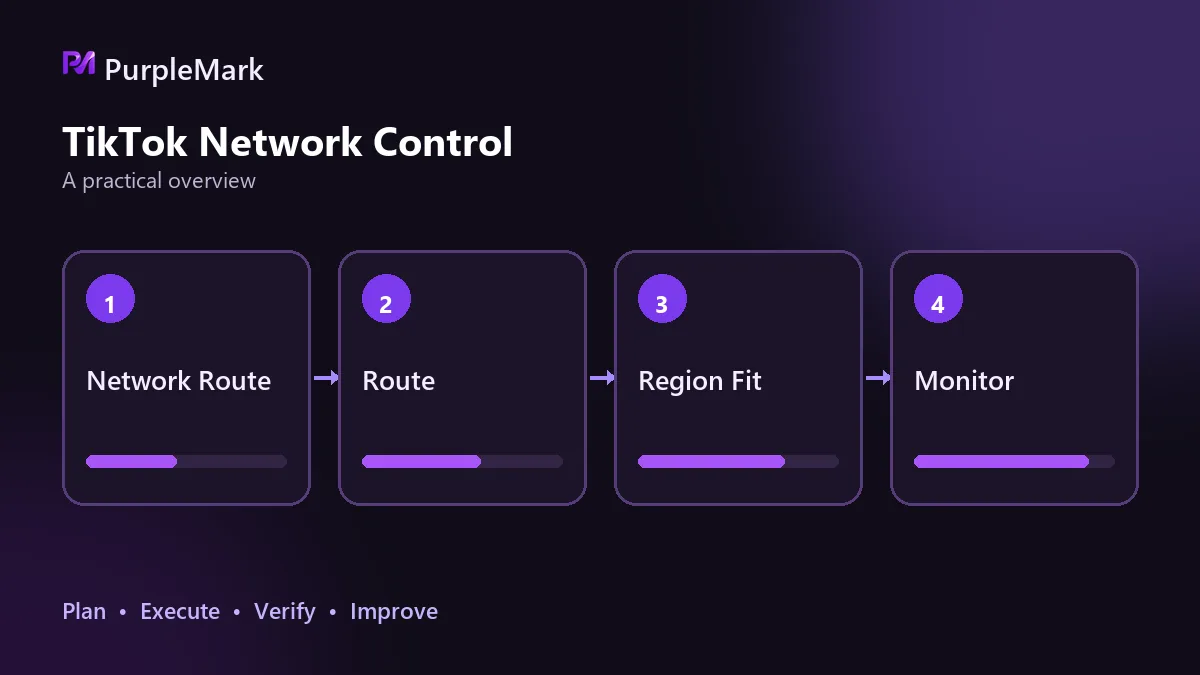
Layer 1: Local network and DNS
Start by checking the outermost layer. On the same device and network, open a site unrelated to TikTok. If it loads, the physical connection and internet access are working and TikTok is receiving some other signal. If it does not, fix the network first; that is not a TikTok-specific issue.
DNS is part of this layer too. Typical signs are that only some sites fail to open, or a page opens but its content does not fully load. Compare resolution results: if the same domain resolves to different addresses locally and through the proxy exit, DNS resolution is not following the exit. The fix is to send DNS queries through remote resolution instead of a local resolver. You can also point DNS explicitly to a public resolver to reduce ISP-level interference.
Layer 2: The exit connection
The exit address is one of the main signals TikTok uses to determine where you are connecting from. Two different failures can occur here: the exit region does not match the account’s region, or the exit IP has poor quality.
A region mismatch often means you can sign in but some features are limited, recommendations look wrong, or certain pages do not load. Poor IP quality has more direct consequences: shared data-center IPs and free nodes are more likely to be treated as abnormal. An IP previously linked to banned accounts, or a large burst of requests from one IP, can also be blocked outright.
Test this by changing the exit for comparison. If the same device and account connect immediately after switching to a clean residential exit, the problem is at this layer. If changing the exit makes no difference, move to the next layer.
Another costly pitfall here is switching too often. Repeatedly signing in to different accounts within a short period can look like bulk activity even if there is only one exit. Teams managing multiple accounts commonly place each account in an isolated environment with its own exit. Tools such as PurpleMark provide a separate operating space for each account, reducing cross-account linkage.
Layer 3: Region and account status
TikTok does not determine region from IP alone. It may also consider the SIM card, system language, and time zone. When these signals conflict, the platform sees an inconsistent user profile; the connection may be blocked, or it may work with limited functionality.
The goal is not to disguise the parameters as another location, but to keep them consistent with one another. The system time zone, language, and region settings should match the location of the exit IP. For example, an exit in the United States combined with a China Standard Time time zone and Chinese system language sends contradictory signals.
Check the account itself as well. If only one account cannot connect while other accounts work, the problem is more likely with that account than with the network. It may be under restrictions, or a record from an earlier abnormal login may still remain. Changing networks or devices will not fix that; check the account’s notifications and appeal options.
Layer 4: App cache and version
The innermost layer is the client itself. The network may be working, yet TikTok keeps spinning or still reports no network connection.
Three causes are common. First, corrupted cache: clear the app cache and data, or reinstall the app, while remembering that reinstalling resets the login state. Second, restricted permissions: TikTok may lack network permission, or battery-saving and background-management settings may be cutting off access. Third, an outdated version: if the app or operating system is too old for newer protocols, update it to the latest version.
Compare clients to isolate this layer. If the web version opens on the same network but the app does not, or vice versa, the issue is with the client rather than the network.
The order determines what to change first
Work from the outside in: local network and DNS, then the exit, then region and account status, and finally the app itself. Clearing the cache while the local network is still down is wasted effort.
Keep one more habit: change only one thing at a time. If you change DNS and the exit simultaneously, even if the problem disappears you will not know which change fixed it, and you will have to repeat the process next time. Record the current configuration before making changes so you can revert if needed.


