
Locate the element, wait until it is interactive, trigger the action, and verify the result: every automation action follows these four steps. Understand selectors, dynamic loading, iframes, and the shadow DOM to build scripts that keep working.
Web automation is often understood as having a program click buttons for you. Once you actually build it, however, you find that each action has four steps, and if any one of them is wrong, the result can look as if nothing happened.
First, distinguish two concepts that are easy to confuse. Web automation is the broader category: using a program to do things that a person would otherwise do on a web page, including retrieving data directly through requests. Browser automation is a more specific branch: a program controls a real browser to open pages, execute JavaScript, and simulate clicks and typing. For pages with lots of dynamic content or complex interactions, the latter is usually necessary.
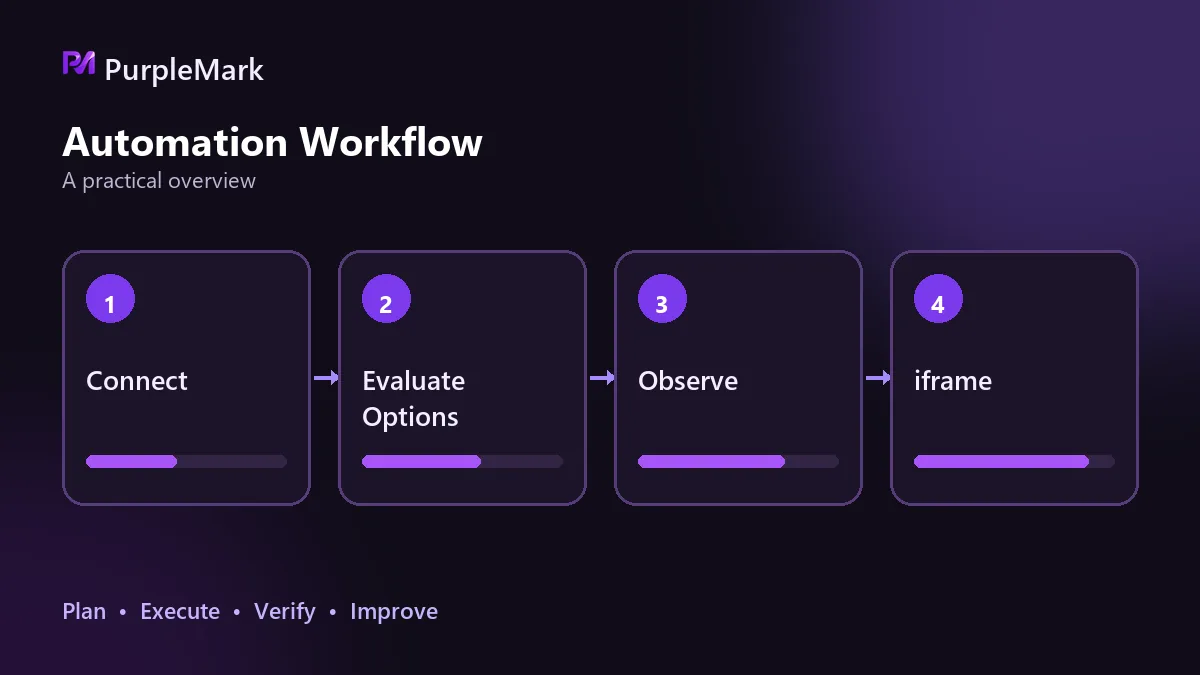
The four steps of an action
- Locate the element: Use id, name, class, CSS selectors, or XPath to identify the target. Prefer semantic attributes; fall back to structure or indexes only when necessary.
- Wait until it is interactive: An element being present in the DOM does not mean it can be clicked. Wait until it is visible, clickable, or until a specific request returns. Wait for a condition, not a number of seconds.
- Trigger the action: Click, type, or scroll. Custom components often require reproducing the sequence a person would follow: open the control first, wait for the list to render, then select by text.
- Verify the result: After the action, confirm that the outcome is correct. Check whether a link changed, whether page text changed, or what the API returned. Without this step, failures can be treated as successes, leaving retries and alerts with nothing reliable to act on.
Of the four steps, the second and fourth usually take the most debugging time. Not because they are difficult, but because they often fail silently and produce the wrong result without throwing an error.
Selector stability determines how long a script lasts
When a page changes, hard-coded locators break. Locating by text, position, or index is the least resistant to change: adding one button or changing one prompt can make everything wrong.
Prefer id, name, or data attributes whenever available. If you must use structural locators, keep them centralized so one change can be made in one place instead of across dozens of lines. Do not expect a script to need no maintenance after it is written; websites change routinely, and much of the maintenance cost is concentrated here.
Dynamic loading: what you wait for matters more than how long
Few pages today have everything ready as soon as the initial load finishes. Data is rendered through asynchronous requests, so elements often appear later than expected.
Fixed waits are common and also easy to get wrong: sleeping for 3 seconds may fail on a slow machine and simply waste time on a fast one. The right approach is to wait for a condition to become true and act only when the element is actually clickable.
If an element cannot be found, check iframe and shadow DOM first
When an element is clearly visible on the page but the script cannot find it, the problem is often not the selector but the scope.
An iframe is a separate document. You need to switch into the relevant frame before locating elements, then switch back out after the operation, or later lookups will run in the wrong context. Nodes inside a shadow DOM are not directly matched by CSS selectors from outside it; first obtain the shadow root, then search inside it. These two cases are often mistaken for a page redesign and can waste a lot of debugging time.
Two more things that are easy to overlook
The first is the session. For tasks that require login, consider how the authenticated state will be saved and reused. Otherwise, every run requires signing in again and may get stuck at a verification step.
The second is the environment. If all tasks share one browser environment, sessions and caches can contaminate one another. Tasks that work fine separately may begin interfering when run together. Once you move from one task to many, isolating environments in a separate layer can save a lot of trouble. Tools such as PurpleMark provide independent fingerprints and independent proxies for each environment, while the automation framework focuses on executing actions.
Confirm one boundary before you start
Automation can replace repetitive operations, but it cannot replace steps that require a real person. If the target workflow includes real-time facial verification or manual review, that workflow cannot be made 100% automated.
So start with the simplest validation method: manually complete the entire workflow yourself, record every step, confirm whether there is any stage you cannot pass, and only then decide how much development effort to invest. Technical feasibility and what the rules allow are also different questions, so review the target platform's terms of service in advance.


