
Many teams struggle to migrate long-running accounts when changing fingerprint browser tools. This article provides a practical three-step approach: export the old environments, organize account information using a template, and bulk-import it into PurpleMark, while explaining which fields should be preserved completely to reduce migration risk.
When cross-border teams replace a multi-account browser tool, they often face the same problem: if dozens or even hundreds of account environments have been running in the old browser for a long time, do they all have to be rebuilt manually one by one? This article presents a three-step migration approach to help you move accounts in bulk from the old tool into a PurpleMark workspace while preserving existing fingerprints and session state as much as possible.
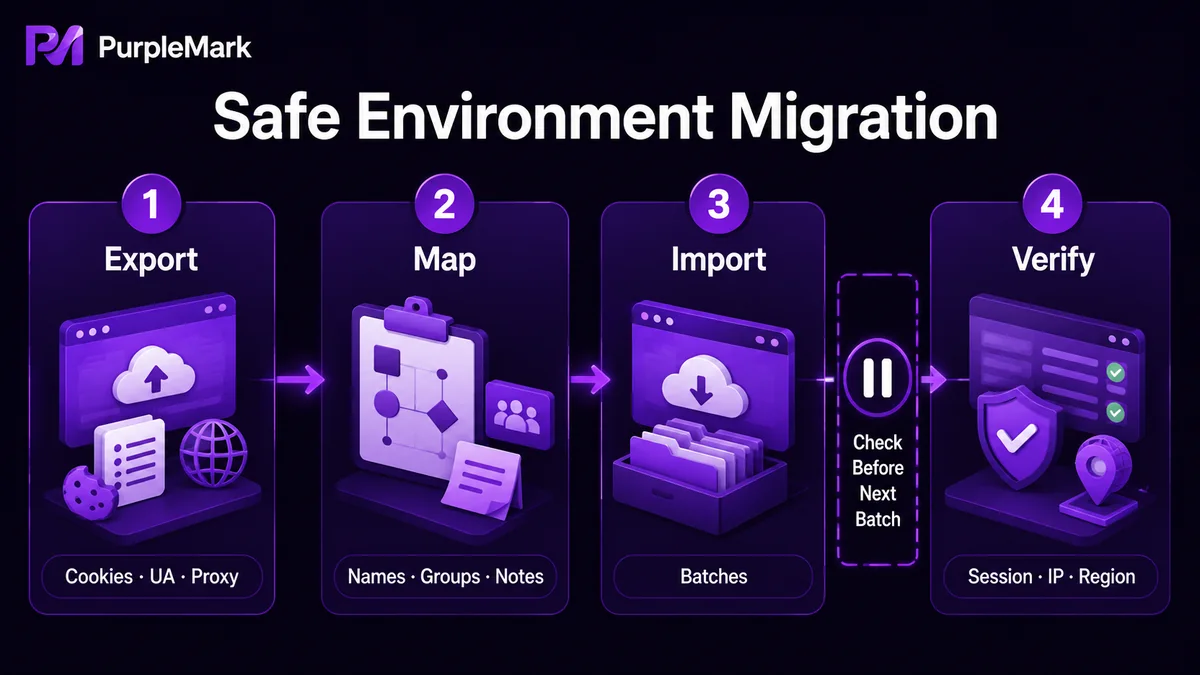
Step 1: Export account environments from the old browser
First, organize the environments you want to migrate into business batches. Different fingerprint browsers export different data, but you can usually obtain an account-environment table containing at least these columns: "environment name, User-Agent, Cookie, proxy, notes, and the corresponding business-platform account."
In the PurpleMark web workspace, environments already have their own list view—ID, name, group, linked account, proxy, outbound IP, last opened time, and creation time—so the migration goal is straightforward: bring the old environments into the same PurpleMark environment view. Before migrating, do two things first:
- List the IDs of the environments you plan to migrate. Separate long-running older accounts from new accounts; migrating in batches can reduce the risk of multiple anomalies appearing at the same time.
- Check at least three pieces of information for each environment: account/platform, Cookie or historical login state, and User-Agent. Cookies are critical to preserving an "existing session" after migration; UA determines whether the fingerprint direction remains consistent after migration.
It is not recommended to keep the same account logged in across multiple fingerprint browsers at the same time. Using the same account in multiple tools can significantly increase the chance of risk-control detection. Log the account out of the old tool and clear its local Cookies as soon as possible, so the account remains active only in PurpleMark.
Step 2: Prepare PurpleMark-compatible import data
When creating an environment, PurpleMark directly supports three Cookie import formats: JSON, array, or Cookie Header format. This means you do not have to manually assemble parameters one by one during migration. The key is to organize the account's "session information" and "environment information" into structures accepted by PurpleMark:
- Session information: Prepare Cookies, Headers, and other fields that can preserve login state in JSON or Cookie Header format. After import, the browser environment can restore the old session, reducing the need to verify the account again on a new device.
- Environment information: Fill in the corresponding PurpleMark environment-list fields for account name, group, linked platform, proxy, and fingerprint parameters (operating system, engine version, UA, resolution, time zone, geolocation, and so on).
- Notes information: Groups, naming conventions, notes, and other information accumulated in the old environment can be mapped directly to PurpleMark's environment name, group, and notes fields.
The main value of preserving these fields completely is to keep the account's "fingerprint direction, regional direction, and session continuity" as consistent as possible after migration, rather than rebuilding parameters from scratch when moving from one tool to another. Much of the account-safety and migration risk comes from migrating only part of the parameters—for example, moving only the account name while allowing the new environment to use a different UA and time zone.
Step 3: Import into PurpleMark in batches and validate
After importing the prepared environment data into PurpleMark, batch importing is the safest strategy. It is recommended to divide imports by business, region, or risk level, and perform a basic check after each batch:
- Confirm that the environments appear correctly in the PurpleMark environment list, and that names, groups, and linked accounts match expectations.
- Confirm that the proxy and outbound IP are bound correctly, and that the outbound IP is an address expected for the target region.
- Confirm that Cookies restore the session, and that the platform is still logged in after opening the environment.
- Confirm that key fingerprint parameters are consistent, and that the operating system, UA, time zone, and geolocation match the target region.
If a batch shows lost sessions, logged-out accounts, or platform risk-control warnings after import, do not rush to process the next batch. Focus on checking whether fields in the import template are complete, especially whether Cookies are missing key domains, whether the UA was truncated, or whether the wrong proxy was assigned.
Special handling for team migration: environment transfer and sharing
If you are moving from individual account management to team collaboration, PurpleMark provides two directly usable capabilities that reduce manual work: environment sharing and environment transfer. Environment sharing lets a new member use an existing member's environment directly without copying it; environment transfer changes ownership of an environment directly to another member. Both methods help account environments quickly find the right owner in the new team structure instead of being left "unassigned" in the workspace.
After migration, you can also use PurpleMark's Recycle Bin for a cleanup check. Old environments that were replaced or imported incorrectly go to the Recycle Bin first and are retained for up to 30 days. This is not a permanent backup, but it is useful for short-term recovery and cleanup verification.
Once migration is complete, the entire account workspace can be managed in one place in the PurpleMark web version, together with member and group permissions, operation logs, and an app center organized by business type. For long-term multi-account operations, this is more reliable than scattering environments across different tools. New users can open the PurpleMark web version to create the first batch of environments and then move old accounts in using the steps above. When local browser capabilities are needed, complete the installation from the download page.
Frequently Asked Questions
Can Cookies always restore the login state? In most cases, yes, but make sure the Cookies have not expired, been truncated, or omitted key domains (such as session and token). Open the environment immediately after import to check the login state; if necessary, log in again and refresh the Cookies.
If an account receives a risk-control warning halfway through migration, should I roll back? Pause the remaining migration first and do not rush to roll back. Check whether this batch's template has missing or truncated fields. If all parameters are correct but the platform still shows a warning, split this batch into smaller groups next time and extend the interval between batches.
Do we have to transfer environments when a team takes over accounts? Using the built-in environment sharing or transfer methods is recommended. This avoids unsafe practices such as sharing account passwords or exporting Cookies and importing them again.


