
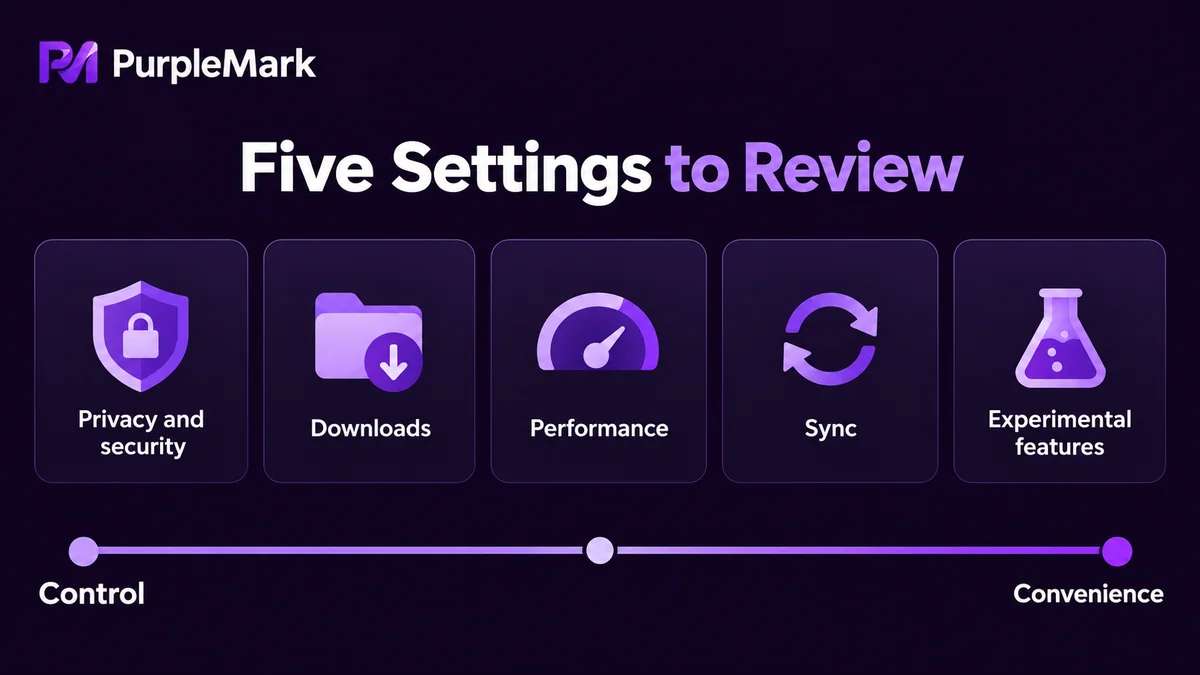
Chrome's default configuration balances ease of use against data collection, and many of its choices are worth adjusting to how you actually work. The article covers five categories — privacy and security, downloads and storage, performance and memory, sync and account, and experimental features — and explains the effect and the cost of each.
Chrome works right after installation, but the default configuration has to serve both the user experience and Google's own data needs, so many points involve compromise. There are roughly five categories worth changing, and each one has a cost that is worth thinking through before you touch anything.
Privacy and security
Blocking third-party cookies gives the most direct benefit: cross-site tracking drops noticeably once it is on. The cost is that embedded content, single sign-on, and third-party comment widgets on some sites may stop working; if a page misbehaves, check this setting first.
Enhanced Safe Browsing submits suspicious pages and downloads to Google for a real-time verdict, and its block rate is higher than the standard mode, at the cost of uploading part of your browsing data. Secure DNS encrypts domain resolution so it cannot be hijacked or snooped on a public network, but it may conflict with a corporate intranet, parental-control software, or local hosts rules; if intranet addresses stop opening, switch back to the system default.
The same entry point also holds site permissions. For location, camera, microphone, and notifications, it is better to set them to ask rather than allow. It is also worth turning on automatic deletion of activity, setting web and app activity to clear automatically; the cost is that personalized recommendations and history search get worse.
Downloads and storage
Set the download location to a specific folder and turn on the prompt for where to save before downloading, so files do not end up scattered in the default folder and impossible to find. The download-complete notification does not help much, but turning off Safe Browsing's download checks is not a good trade, especially when downloading files from unfamiliar sources.
When clearing browsing data, pay attention to which boxes are checked. Clearing cache and cookies affects login state, while clearing download history does not delete files you already downloaded. When disk space is tight, clear the cache first, and do not clear passwords and autofill along with it.
Performance and memory
Memory Saver suspends tabs that have been inactive for a while to free up memory; the cost is that switching back requires a reload, and a half-filled form may be lost. The benefit is clear when you keep many tabs open on a machine without much memory.
Energy Saver reduces background activity on battery power, at the cost of scrolling and animations that may not feel as smooth as before.
What really eats memory is usually not a setting but extensions. Turning off or uninstalling the ones you do not use is more effective than adjusting any single toggle. It is also worth turning off "continue running background apps," so Chrome does not stay resident after you fully exit.
Hardware acceleration should stay on for most machines; only try turning it off if you see screen tearing or abnormal video playback.
Sync and account
Sync requires choosing what to sync. Bookmarks, passwords, and extensions are convenient to sync, while history and open tabs merge browsing traces from several devices, so it is best left off on a shared computer.
A better approach is to use multiple profiles. Chrome lets you separate work, personal, and client accounts into different profiles, each with its own bookmarks, extensions, and login state, without interfering with one another when you switch. It is also worth fixing startup behavior to reopen the last tabs or a specified page, instead of opening an uncertain page each time.
Experimental features
Typing chrome://flags in the address bar opens experimental toggles. These features have not gone through full testing, can be removed at any time with a version update, and may cause pages to misbehave or crash. Unless you clearly know what an item does, it is not advisable to turn it on casually, and especially not to change many items at once. If something breaks after a change, using the reset button on the page to restore all defaults is the least troublesome way to troubleshoot.
What profiles cannot solve
Multiple profiles separate login state and bookmarks, but the network exit, device traits, and browser fingerprint remain the same. Several accounts on one computer still look like they come from the same environment to a platform. For multi-account or client-account management, this layer has to be solved outside the browser; PurpleMark provides account-level isolated browser environments, giving each account its own separate exit and fingerprint configuration.
How you tune the settings depends on whether you care more about privacy, performance, or compatibility. Understanding the cost beats copying someone else's checklist once and for all.


