
Want to watch YouTube videos offline or save subtitles but not sure which tool to use? This guide covers 6 download methods that still work in 2026, including browser extensions, online download sites, desktop software, and command-line tools, with tips on choosing the right option for different situations.
YouTube is the world’s largest video platform, and many people want to save videos locally for offline viewing, editing material, or personal collections. There are many ways to download videos, from one-click extensions to command-line tools. The key is choosing the method that fits your use case.
This article introduces 6 YouTube video download methods that are still usable in 2026, arranged from easiest to more advanced.
What to know before downloading YouTube videos
Downloading a YouTube video itself is not complicated, but one point should be clear first: respect video copyright and the platform’s terms.
- When downloading copyrighted video content, make sure you have the legal right to download and use it. Unauthorized downloading and redistribution may constitute infringement;
- Downloading for personal offline viewing, study, or backing up your own content generally carries lower risk;
- Be especially cautious if you plan to use someone else’s downloaded video commercially or upload it again.
The methods below are recommended only for content you have the right to save.
Method 1: Browser extension (for Firefox users)
Firefox users can simplify downloads by installing the “Easy YouTube Video Downloader Express” extension. It places a download button directly on YouTube video pages so you can choose a resolution and download with a click. It is well suited to people who occasionally download individual videos.
Steps:
- Open Firefox, visit the extension’s official add-on page, install it, and restart the browser after installation;
- Open YouTube and go to the video you want to download;
- Click the “Download” button below the video;
- Choose the resolution you need from options such as 360p, 720p, and 1080p;
- Click the selected format and the video will begin downloading locally.
Method 2: DownSub (for downloading subtitles)
If you need to download the video’s subtitle file rather than the video itself, DownSub is a free and easy-to-use option. It can extract subtitles from YouTube and multiple other platforms, export them in SRT or TXT format, and translate subtitles into other languages.
Steps:
- Open the YouTube video page and copy the video link;
- Visit the DownSub website, paste the link into the input box, and click download;
- The tool will automatically analyze the subtitles included with the video and then provide SRT and TXT versions;
- If you need translated subtitles, choose the target language in the second-language option to generate the corresponding version.
Method 3: Savieo (online downloader, no installation required)
Savieo is an online downloading service that supports multiple video platforms. Its interface is simple and no software installation is required—just paste in the video URL to download.
Steps:
- Copy the video link on YouTube;
- Open the Savieo website, paste the link into the input box, and click download;
- After analyzing the link, the tool will show download options at different resolutions;
- Choose the version you need, such as 1080p, and click the corresponding resolution to download it.
Method 4: Loader.to (supports up to 8K)
Loader.to is a multifunctional online video downloader that lets you choose different formats and quality levels, with resolution support up to 8K. It is suitable for users with higher image-quality requirements.
Steps:
- Find the YouTube video and copy its link;
- Visit Loader.to, enter the video URL, choose a format, and click download to start processing;
- Once processing is complete, you can download the video locally.
Method 5: 4K Video Downloader (full-featured desktop software)
4K Video Downloader is desktop software compatible with Windows and macOS. It supports downloading individual videos, playlists, channels, and subtitles, with multiple quality options including 720p, 1080p, 2K, 4K, and 8K. It can also batch-convert videos to audio formats such as MP3, making it suitable for users who download frequently or in bulk.
Steps:
- Download and install the software from the official 4K Video Downloader website;
- Open YouTube and copy the link of the video you want to download;
- Open the software, click “Paste Link” to analyze the link, then choose the quality and set the parameters;
- Click “Download” to start. When finished, you can find and play the video in the completed list.
Method 6: youtube-dl (command line, for advanced users)
youtube-dl is an open-source command-line program written in Python that supports downloading videos from YouTube and many other websites. Its strengths are broad functionality and customizable parameters, including quality, subtitles, speed limits, and batch downloads. The trade-off is that it requires command-line use, so it is better suited to users with a technical background.
Steps:
- Download and install youtube-dl from its official website (a Python environment is required);
- Open a command prompt or terminal, type
youtube-dl, add a space, paste the video link, and press Enter to start downloading; - By default, it downloads the highest-quality video. To download an entire playlist, simply use the playlist URL;
- If you need to specify a format or quality, consult the parameter documentation on the official site.
Which download tool should you choose for different situations?
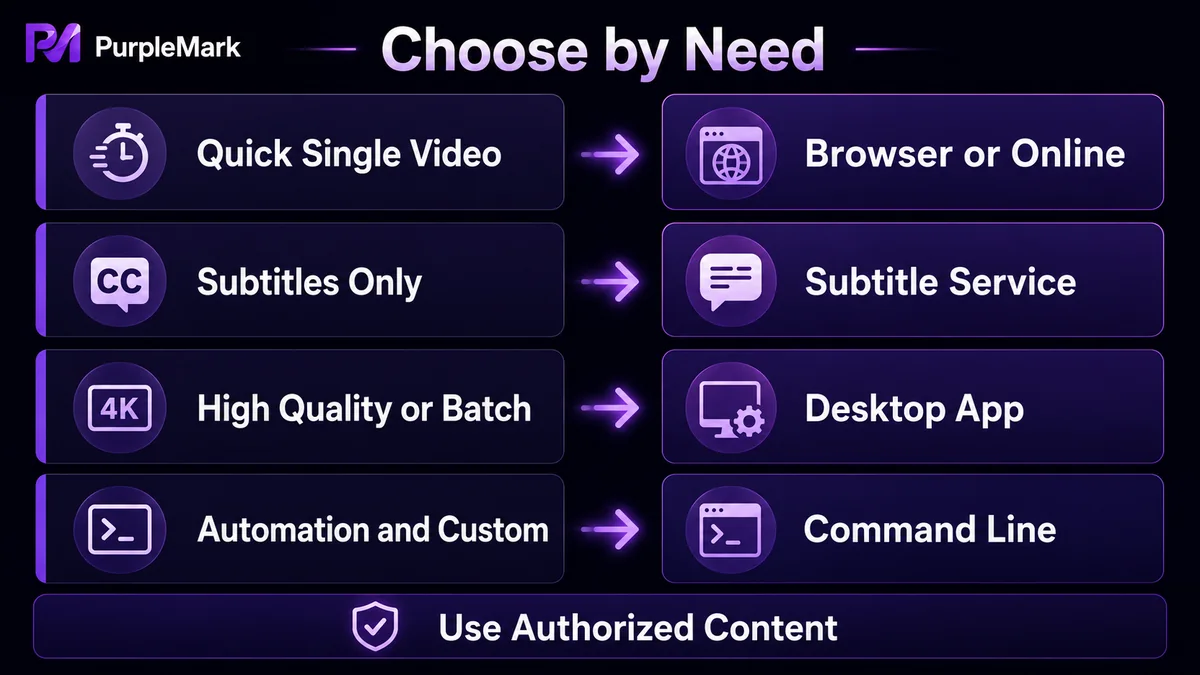
| Scenario | Recommended method |
|---|---|
| Occasionally download a single video | Browser extension or Savieo online site |
| Only need subtitle files | DownSub |
| Want high resolution (4K/8K) | Loader.to or 4K Video Downloader |
| Frequent downloads, batch jobs, or audio conversion | 4K Video Downloader |
| Technical users, batch processing, and customization | youtube-dl |
How can you make the workflow more reliable when organizing video assets in bulk?
If your workflow regularly involves downloading and organizing YouTube video assets—for example, when operating multiple channels or repurposing content—the way you organize accounts and browser environments can affect efficiency just as much as the download tool itself.
A common pain point is that when multiple YouTube accounts are used on the same computer for collecting content or maintaining comments, cookies and login states can get mixed together, and switching accounts can lead to mistakes. When assets are also scattered by account and channel, it becomes difficult for a team to trace who downloaded what and what actions were taken.
If your team needs to maintain multiple channels or accounts over the long term, you can prepare separate browser environments for each account according to account or business. Using the web version of PurpleMark as an example, you can create an independent environment for each channel, name and group them, and bind the corresponding account so that cookies, cache, and login states do not interfere with one another. When the same download page or background task needs to be repeated, window synchronization can also reduce repetitive operations.
Independent environments are intended to help you manage accounts you own in a compliant way, not to bypass platform rules. Whether multiple accounts are permitted should be determined according to the terms of service of YouTube and the relevant platforms.
Frequently asked questions
Is it legal to download YouTube videos?
It depends on the copyright status of the video and how you intend to use it. Downloading copyrighted content without authorization may violate copyright law, so it is recommended that you only download content you have the legal right to save and use.
Does downloading a YouTube video reduce its quality?
No. As long as the source video itself is high quality, using a tool that supports resolutions such as 1080p or 4K, including 4K Video Downloader or Loader.to, can preserve the corresponding quality. Some online sites may limit available resolution options during peak periods.
Are there free tools for downloading YouTube videos?
Yes. Browser extensions, Savieo, Loader.to, DownSub, and similar tools offer free use. The free version of desktop software such as 4K Video Downloader can also cover basic downloading needs.
How can I download YouTube subtitles?
You can use a subtitle downloader such as DownSub. After pasting the video link, you can export subtitle files in SRT or TXT format, and the tool also supports translating them into other languages.
Do I need to install software to download YouTube videos?
Not necessarily. Online download sites such as Savieo and Loader.to require no software installation, and browser extensions only need to be installed inside the browser. Only desktop tools such as 4K Video Downloader require separate software installation.


