
Manage accounts at the office and continue at home, or move to a new computer without losing sign-in status, cookies, or proxy settings. This guide explains how browser environments can continue across devices and how teams can manage permissions and audit trails.
In cross-border e-commerce or overseas social media operations, accounts are rarely handled on just one computer: you may manage stores, publish posts, and reply to messages at the office during the day, then want to continue at home at night; you may replace your computer and want the browser to open with the same signed-in setup as before; or several teammates may need to maintain the same group of accounts. All of these scenarios raise the same question—can a browser environment continue to be used on another device?
Many people assume a browser environment is “stored” on the local computer, so changing devices means rebuilding the environment and signing in again. That is not necessarily the case. What matters is where the environment data is stored and what management method you use. This guide explains how cross-device browser environments work.
Why “the environment disappeared after switching devices” is such a headache
In account operations, the biggest problem is often not a lack of accounts, but a scattered environment. A browser environment usually contains things you have accumulated over time:
- Cookies and sign-in status: on most platforms you are already signed in and can start immediately;
- Browser fingerprint and device parameters: operating system, UA, time zone, language, WebGL, and other settings need to remain consistent to avoid sudden parameter changes;
- Proxy configuration and outbound IP: a fixed network exit may already be bound;
- Frequently opened pages, local storage, cache, and more.
If all of this exists only on one computer, changing devices or locations often means: rebuild the environment → configure parameters again → enter the proxy again → sign in to the platform again → and frequent switching may also trigger risk controls. The time cost is secondary; the bigger problem is the operational confusion caused by inconsistent environments.
For cross-device use, first understand where the data is stored
To answer “can I keep using it after changing devices?”, the key is where the environment data is saved:
- If environment settings, groups, proxies, and cookies are centrally stored in a cloud workspace/account system, then logging in to that account or opening that workspace from any device shows the same set of environments. You can open the relevant environment and continue without rebuilding it.
- If environment data is stored locally by default, you need to manually “sync/export/migrate” it. Every device change becomes another migration, which makes it easy to miss settings or create inconsistencies.
For people who often switch between the office, home, remote locations, and multiple computers, the first model is usually preferable—the environment follows the account rather than a particular computer, eliminating a large amount of repetitive setup.
Personal cross-device use: the same account / workspace, available everywhere
If your need is simply “one person switching between multiple computers,” the process is straightforward:
When moving between an office computer and a home computer, replacing a device, or temporarily using a spare machine, you do not need to rebuild a separate environment on each device. As long as your environments are centrally managed under the same account/workspace, sign in to the same account on the new device and open the same workspace. You can then see and open the original environments, with the previous settings, cookies, account sign-in status, and proxy configuration retained.
The benefit is obvious: you do not need to remember the differences between computers or manually move everything. Use whichever device is convenient. On a business trip or after an unexpected device change, you can reconnect to the same working setup quickly.
Pay attention to data security and permission boundaries. Signing in to the same account across devices means those devices can access the environments. Only sign in on devices you trust, and sign out promptly when leaving a shared or public computer so environment data is not exposed where it should not be.
Team collaboration: stop sharing passwords and assign access by member
When the scenario moves from “one person changing devices” to “a team managing the same batch of accounts,” letting everyone share one main account is usually a poor choice. Typical warning signs include:
- Operations and customer service both need to manage accounts, but their responsibilities differ;
- Multiple employees are responsible for different businesses or markets at the same time;
- The company wants to control “who can view, who can edit, and who can delete”;
- Managers need to know what each member did.
A more structured approach is to create separate member accounts for team members, then control access through user groups and authorization, instead of distributing the main account password.
Step 1: create user groups first and standardize permissions
Before collaborating, divide users into groups by responsibility, such as “Sales,” “Operations,” and “Customer Service.” Name each group, describe its scope of responsibility, and enable the functions the group is allowed to use. Members in the same group receive the same permissions; functions that are not enabled are neither visible nor usable. This creates clear permission boundaries and helps avoid problems such as a member accidentally changing team settings.
Step 2: add members and assign roles and authorized groups
When adding members to a group, you will typically configure several dimensions:
- User group: the group a member joins determines the permissions they inherit;
- Identity/role: for example, an administrator may edit users and group data under their scope, a manager may add users and edit data for members under them, while a regular member cannot change users or groups; assign roles according to actual responsibilities;
- Authorized groups: determine which groups of environments the member may access. If no group is authorized, the member cannot see those environments, preventing accidental interaction with unrelated accounts at the source;
- Other restrictions (optional): for example, limit how many environments a member can create to tighten permissions further.
Layered authorization like this preserves collaboration efficiency while reducing the risks of mistakes and unauthorized access. Members sign in with their own accounts and can only see and operate authorized environments, so passwords do not need to be passed around.
Step 3: keep an audit trail so actions are attributable
When multiple people operate the same accounts, the worst situation is “something went wrong and nobody knows who did it.” A well-managed team environment keeps operation logs: who did what and when, which environment they logged in to, what they changed, which proxy they used, and which processes they started. Administrators can review these records and, when needed, filter by operator or time to identify the problem. This also supports trust within the team—not because someone is assumed untrustworthy, but because responsibilities remain clear and traceable.
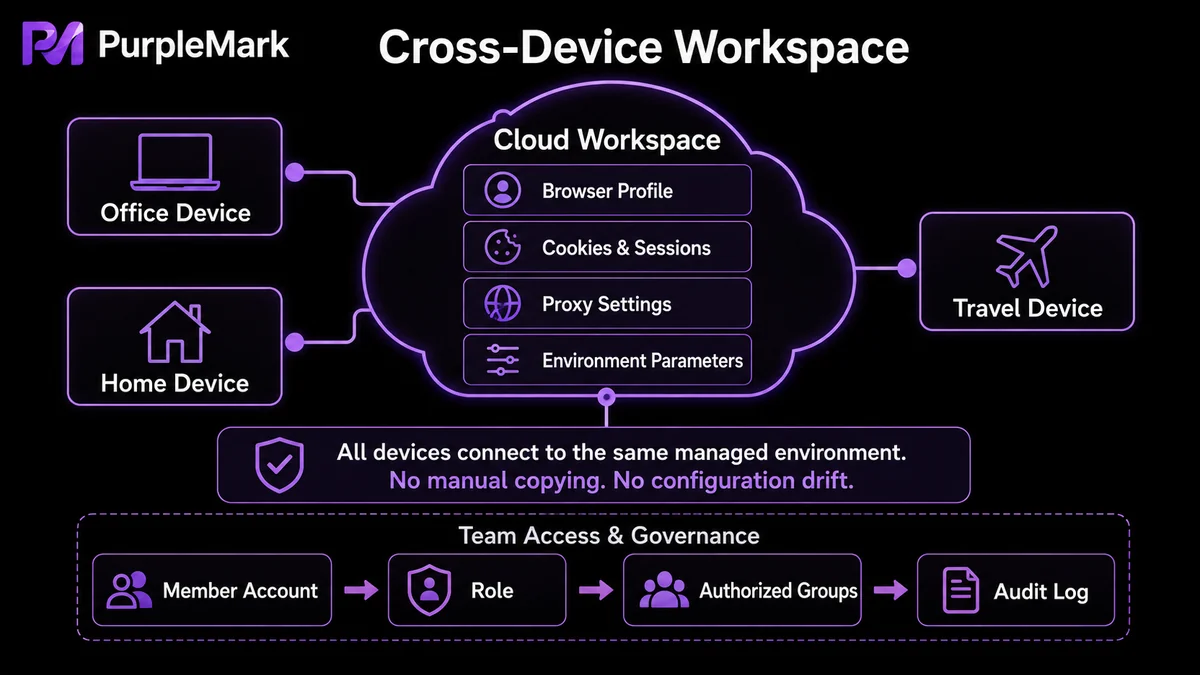
One workspace can solve both “cross-device access” and “team collaboration”
Looking at these two needs together, personal cross-device use and multi-user team collaboration both rely on three fundamentals: centralized environment data, authorized access, and traceable actions. Putting account environments in one centrally managed workspace is often easier than leaving them scattered across individual computers.
This is also how PurpleMark works—it is a web-based multi-account browser environment management and automation platform. Because environment lists, groups, proxies, cookies, browser fingerprints, and related data are centrally maintained in a web workspace:
- Cross-device access is natural: open the same workspace in a browser on your office computer, home computer, or another device while away, and you see the same environments. Open one and use it without rebuilding or manually migrating it per device;
- Team collaboration has boundaries: members, member groups, roles, and authorized groups define “who can access which environment groups,” and each member operates within their assigned permissions using their own account;
- Actions are traceable: login logs and records of environment and proxy management are retained, making troubleshooting and responsibility assignment easier after work is divided;
- Management is more consistent: proxies can be centrally maintained and bound as needed, reducing scattered account and network configurations.
If you are struggling with “I have to rebuild the environment whenever I change devices” or “sharing one account across a team gets messy,” you can open the PurpleMark web app, place the accounts you manage into separate environments and groups by business, then use member permissions so the team collaborates within clear boundaries—reducing environment mixing and repeated configuration at the source.
Compliance reminder: multiple environments and multiple member accounts are intended for compliant scenarios in which genuinely different brands, markets, clients, or business entities are independently maintained by their respective real entities. Do not fabricate or mass-register accounts for the same entity to bypass platform risk controls, and do not allow unauthorized people to access business account environments that are already signed in.
Frequently asked questions
If I switch to a new computer, will the sign-in status in my original browser environment still be there?
If your environment data is centrally maintained in a cloud workspace, signing in to the same workspace lets you see and open the original environment, and cookies and sign-in status are usually retained. If the environment data exists only on the old computer by default, you need to sync or migrate it before switching.
For personal cross-device use, do I need to configure each computer separately?
If environments are centrally managed under the same account/workspace, you can simply sign in to the same account on the new device and generally do not need to rebuild them one by one. Only sign in on trusted devices and maintain proper sign-out and access boundaries.
Can a team just share the main account password?
It is not recommended. Sharing the main account gives everyone the same permissions, makes accountability difficult, and increases the risk of password exposure. A more structured approach is to create separate accounts for members, control access through user groups and authorized groups, and retain operation logs.
Can a member be limited to viewing without editing?
Yes. Access can be controlled through authorized groups and roles: a member cannot see environments in groups they are not authorized to access, and without an editing role they can be limited to view-only access, reducing the risk of accidental changes.


