
There is no legitimate consumer-grade iOS emulator for Windows. A comparison of cloud-based real iOS devices, direct installation on an Apple silicon Mac, and the Xcode Simulator, plus how to choose by use case.
Wanting to run iOS apps on a computer starts with accepting one premise: there is no legitimate, consumer-grade iOS emulator for Windows. Tools such as BlueStacks emulate Android, which is an entirely different system from iOS. iOS apps target ARM chips and Apple's signing mechanisms, and there is no system image that can be legally distributed to run directly on Windows.
There are really only three viable paths, and their purposes and limits differ sharply.
Path 1: Real iOS devices in the cloud
Cloud testing platforms run actual iPhones or iPads. You operate them in a browser, and installing test builds and tapping through verification all happen remotely. Services such as BrowserStack, Sauce Labs and AWS Device Farm work this way, and some platforms aimed at security research offer deeper access.
The advantage is closeness to a real device: hardware capabilities and system versions are genuine, which makes this good for reproducing production issues and validating compatibility. The limits are equally clear: billing is usage-based, sessions are shared resources destroyed once you are done, operations carry network latency, and it is unsuited to being left running for long stretches. Cloud devices are also someone else's machines, so test data, login credentials and screenshots all live remotely - do not upload sensitive content.
Path 2: A Mac with an Apple chip
Macs with M-series chips can install iPhone and iPad apps straight from the App Store, provided the developer has not disabled that option. This is currently the least troublesome way to use iOS apps on a computer: once installed it is simply a window, and performance is essentially native.
Two constraints apply: only Apple silicon Macs are supported, not Intel models; and whether you can install something depends on the developer's switch, with plenty of apps having opted out of distribution on macOS. There is also an experience gap after installation - iOS apps are designed for finger touch, so mouse and keyboard interactions can feel awkward, and screen rotation plus gyroscope-dependent features do not always behave smoothly.
Path 3: The simulator bundled with development tools
The iOS Simulator installed alongside Xcode runs on macOS and is positioned as a development and debugging tool: you need source code or a finished build, and it emulates an iOS runtime rather than a real device. Camera, sensors, push notifications and other hardware-tied areas are not fully reproduced. If you want to install apps from the store, this path is a dead end - it was never designed for that. Its benefit is running several iOS versions at once to check how a change behaves across systems, which is far less trouble than reflashing a physical device.
How the three actually differ
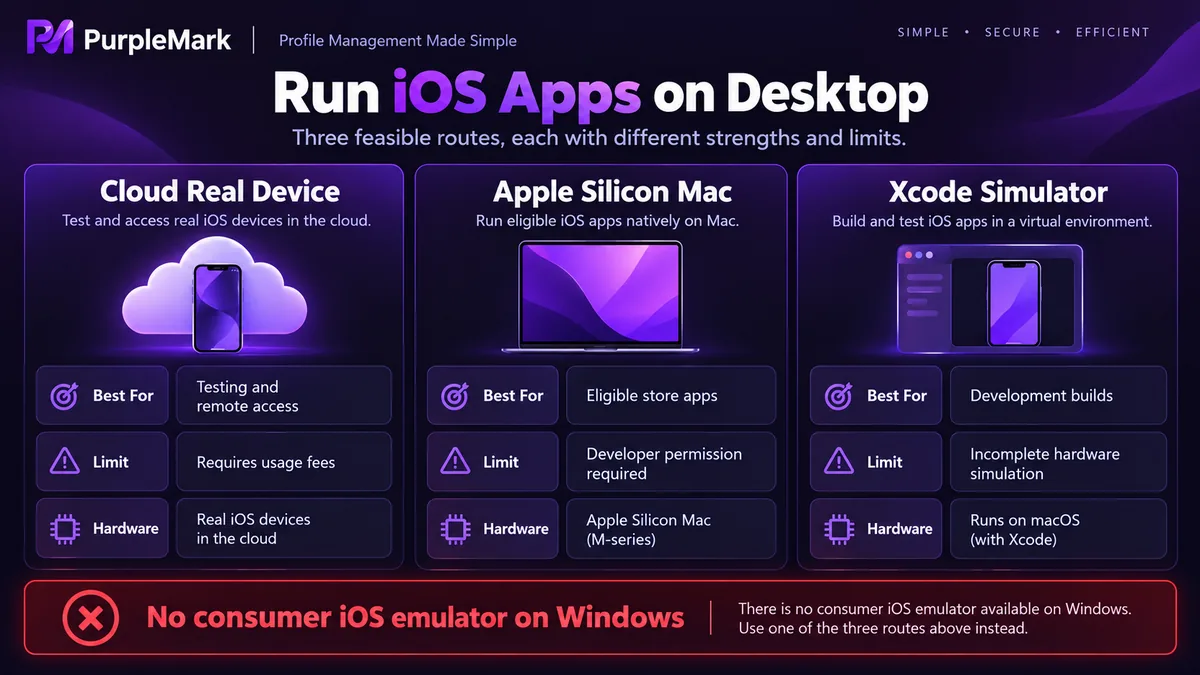
On compatibility, cloud devices come closest to real hardware, native execution on Apple silicon is next, and the Simulator has the weakest support for hardware-related capabilities.
On performance, the cloud depends on network conditions, local options depend on the machine itself, and native execution on an Apple silicon Mac is the most efficient.
On account risk there is a hard line: never enter your Apple ID and password into some unknown so-called iOS emulator - most such tools cannot actually run iOS, and the page exists to harvest accounts. Nor should you sign in with your primary account inside a shared cloud session, since account sharing itself violates Apple's terms of service, and getting a locked account restored is a real hassle. For testing, use a dedicated test account and discard it afterwards.
On compliance, Apple's software licence agreement does not permit running macOS or iOS on non-Apple hardware. Any consumer product claiming to emulate iOS on Windows is either an Android wrapper or has an ulterior motive.
Choosing a path by use case
For development and debugging: cover everyday changes locally with the Xcode Simulator, and supplement with cloud devices for anything involving hardware differences and system versions.
If you simply want to use a particular app on your computer: first check whether the vendor offers a web version or desktop client; if not, an Apple silicon Mac is the most realistic option, followed by renting a device by usage on a cloud platform. Hunting for an emulator just to run one iOS app long term rarely pays off.
You can also reason backwards from cost: if you need it only a few times a year, usage-priced cloud devices are the better deal and you avoid buying a machine for a single validation; if you need it daily, native installation on a Mac offers clearly better experience and stability.
Teams hit a smaller problem too: when several members each have different test accounts and sign in in turn on the same machine, cookies and sessions tend to overwrite each other, producing inexplicable login failures. Giving every account its own isolated browser environment avoids that kind of cross-talk, and that is the kind of environment isolation PurpleMark provides.


