
Changed computers and wondering whether bookmarks, passwords, extension data, and login sessions are still there? It depends on whether environment data sync is enabled. Using PurpleMark as an example, this guide explains where to enable it, what to sync, when syncing actually happens, and how to keep data secure.
Managing accounts at the office, continuing at home, or moving to a new computer... you may open an environment on the new device and find that your saved bookmarks, passwords, extension data, and login sessions are all missing.
In many cases, the data has not been lost—you simply did not enable environment data sync. To protect privacy, fingerprint browsers usually store environment data locally by default and do not upload it automatically. That also means local data will not follow you to another device unless syncing is enabled. Using PurpleMark as an example, this guide explains how to turn on environment data sync, which data types to select, and what to watch out for.
What environment data sync solves
Each browser environment stores a range of usage traces and preferences, mainly including:
- Cookie / login status: many environments are already signed in and ready to use when opened;
- Bookmarks: frequently used dashboards and reference pages you have saved;
- Saved passwords: autofill records for account credentials on different platforms;
- LocalStorage / IndexedDB: local data saved by websites;
- Extension and app data: data generated by installed browser extensions.
If all of this exists only on one computer, changing devices can mean starting over. Once environment data sync is enabled, you can carry this set of data over when moving to another device.
Where to enable it and what to select
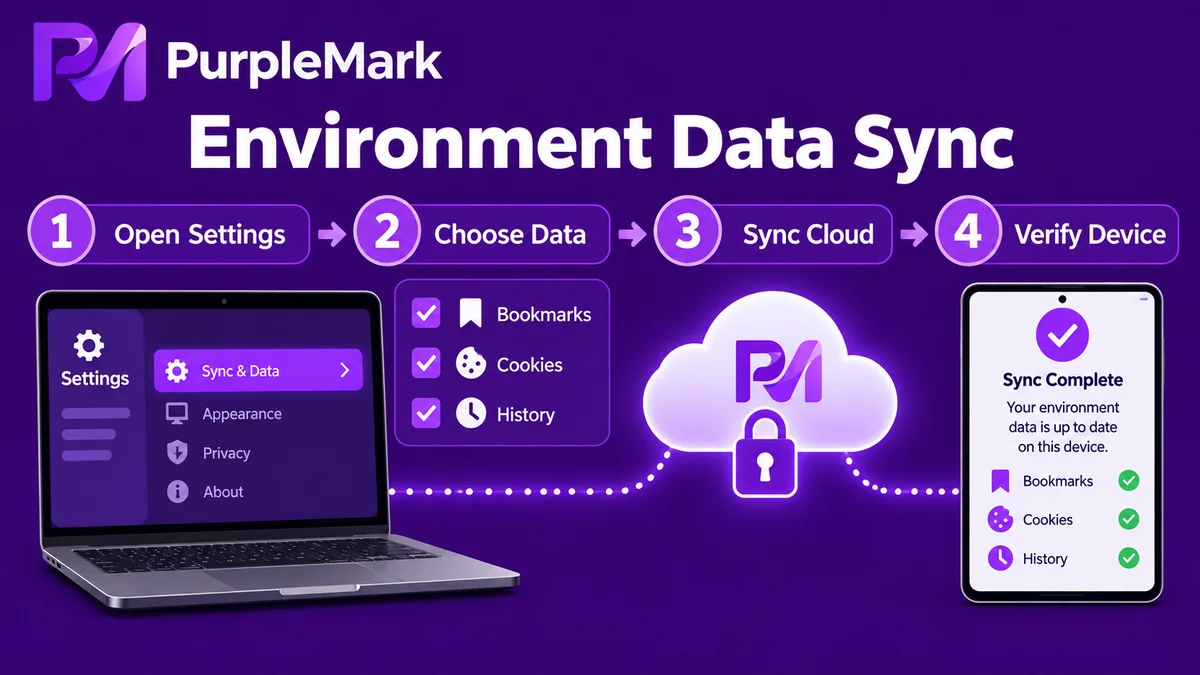
Enabling environment data sync in PurpleMark generally takes a few steps:
- Open the data sync settings: in the workspace's global settings or team management area, find the entry related to "Data Sync";
- Turn on the sync switch: data sync is usually disabled by default, so you need to enable it manually;
- Select the data types to sync: choose what you need, such as Cookie, bookmarks, saved passwords, LocalStorage, IndexedDB, and extension data. Leave anything you do not want to sync unchecked—for example, if you only need bookmarks and passwords, selecting those two is enough;
- Save and let it take effect: after finishing the settings and closing the environment browser normally, the data can then be saved and synced.
A few things to keep in mind
- Syncing actually happens after the browser is closed: you generally need to close the browser for that environment before the data is saved and pushed to the cloud or other devices. While the browser is still open, do not rush to open the same environment on another device, or you may receive an older unsynced state or even create a sync conflict.
- You control what gets synced: you do not need to sync everything. If you only want bookmarks and passwords while keeping other data local, select only what you need to balance convenience and privacy.
- Enabling sync does not mean giving up control of your data: synced data is generally encrypted during transmission and storage and can only be read by the account owner. The platform does not actively upload it by default; whether to sync and what to sync are decisions you control.
What if you want to migrate environments from another tool?
If you previously used another fingerprint browser and want to move a full set of environments to PurpleMark, there is usually a corresponding bulk migration / import path. Export the original environment configuration, Cookie, and other supported data, then follow PurpleMark's import instructions to bring them over in batches instead of rebuilding environments one by one.
Summary
If the "environment is still there but the data is gone" after changing devices, environment data sync is probably not enabled. Turn on sync in global settings, select the data types you need, and remember to close the browser normally so the data can be saved. That lets you continue your working state smoothly across multiple devices. For security, the combination of "no automatic upload by default + encrypted transmission and storage + user-controlled selection" provides the core protection.
If you want bookmarks, passwords, and Cookie to follow you across devices, open the data sync settings in the PurpleMark workspace and select the data you want to carry over.


