
Need to perform the same actions across multiple browser profiles at once? Window Sync can help. This guide explains what Window Sync is, how to start it, and how to troubleshoot one-click arrangement, multi-monitor syncing, initialization failures, windows that cannot be selected, and other common issues, using PurpleMark as the example.
When running cross-border ecommerce or international social media operations, you often need to perform the same set of actions in several browser profiles—for example, signing in to several newly configured accounts one by one or publishing the same content to multiple admin panels. Switching windows and copying and pasting manually is slow and easy to get wrong.
The Window Sync feature in an antidetect browser is designed for exactly this situation. It can synchronize scrolling, clicks, typing, and other actions from a primary window to other open windows, allowing one set of manual actions to run in multiple places at once. Below, we use PurpleMark as an example to explain how it works and how to troubleshoot common problems.
What Can Window Sync Do?
In simple terms, Window Sync is useful for scenarios such as:
- Batch login: After opening several account profiles, enter the credentials and sign in once in the primary window while the other windows follow the same on-screen actions;
- Batch publishing / form filling: Fill the same form or enter the same text across multiple backends in one synchronized operation;
- Same-process checks: When multiple pages need to be clicked in the same sequence, use one primary window to drive the others.
It relies on "action synchronization," so all of the profiles must be launched first, and their interfaces should be kept as consistent as possible.
How Do You Start Window Sync?
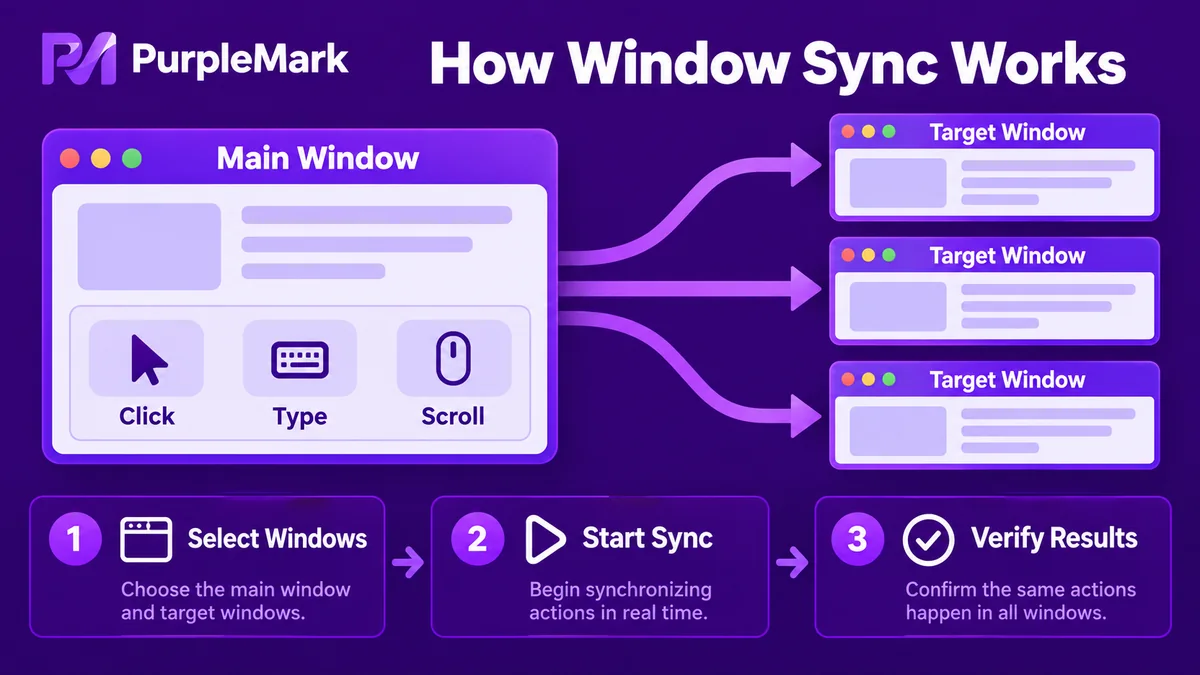
In PurpleMark, the basic process for starting synchronization is:
- Open all profiles you want to sync first: In profile management, launch all browser profiles that need to be operated together;
- Open the Window Sync interface: The tool automatically detects browser profiles that are already open;
- Choose the primary window: Select one profile as the primary environment. All subsequent actions will use it as the reference;
- Select the windows to synchronize: Check the other profiles that should follow the primary window;
- Click Start Sync: Scrolling, clicks, and typing in the primary window will then be synchronized to the selected windows;
- Use one-click arrangement when needed: Arrange multiple windows in a grid or stacked layout so you can quickly confirm that each window is aligned and that actions are taking effect.
To stop, simply click Stop Sync. Each window will then return to independent operation.
Common Problems and Troubleshooting
These are the issues users most often encounter with Window Sync. In most cases, the following checks can help resolve them.
Q1: Window Sync shows "Initialization timeout / Operation failed" when starting This is usually caused by an outdated software version, or by a local proxy or firewall interfering with the synchronization process. Update the tool to the latest version and restart it. If necessary, temporarily disable the local proxy or firewall and try again.
Q2: Some windows cannot be selected in the interface The browser engine used by that profile may not support Window Sync, or its engine version may be too old. Switch the relevant profiles to a supported engine version and check again.
Q3: The navigation bar or some actions do not synchronize Synchronization requires consistent interfaces. Make sure all windows have the same layout (including button positions and whether the bookmarks bar is shown) and are using the same browser-engine version, then restart synchronization.
Q4: Windows overlap after being arranged This usually happens when a custom window size is set too small, below the minimum allowed by the tool. Enlarge the windows to a reasonable size and arrange them again.
Q5: Buttons on the synchronization control panel do not work In most cases, synchronization has not actually been started yet. The control-panel functions are available only after synchronization starts. First confirm that the synchronization status is "Running."
Q6: Window Sync keyboard shortcuts conflict with other computer shortcuts You can define a different shortcut combination in the tool settings to avoid conflicts with the operating system or other software.
Q7: I want to synchronize windows across multiple monitors If you use multiple displays, first use one-click arrangement for one group of windows on the built-in display. Then deselect them, arrange another group on the extended display, and finally select all windows and start synchronization.
Summary
Window Sync is an efficiency feature that lets repetitive actions "run in multiple places at once." It is well suited to routine workflows such as batch login and batch publishing across multiple profiles. The key preparation is to open all profiles first and keep the browser engines and layouts as consistent as possible. If initialization fails, windows cannot be selected, or actions do not synchronize, troubleshoot along the three main lines above: software version, proxy/firewall, and browser-engine/layout consistency.
If you regularly use multiple account profiles for the same workflow, open your PurpleMark workspace, launch several profiles, and try the Window Sync interface.


